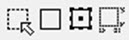
Save time by moving and arranging selected areas within your design with Selection Boxes.
With four tools and lots of behind-the-scenes actions, take time to study how Selection Boxes work in Stitch Designer.
Topics Covered
Selection Boxes
Transparent / Opaque
Daisy Buttons
Moving a Selected Area
Variations
Selection Boxes
Selection Boxes
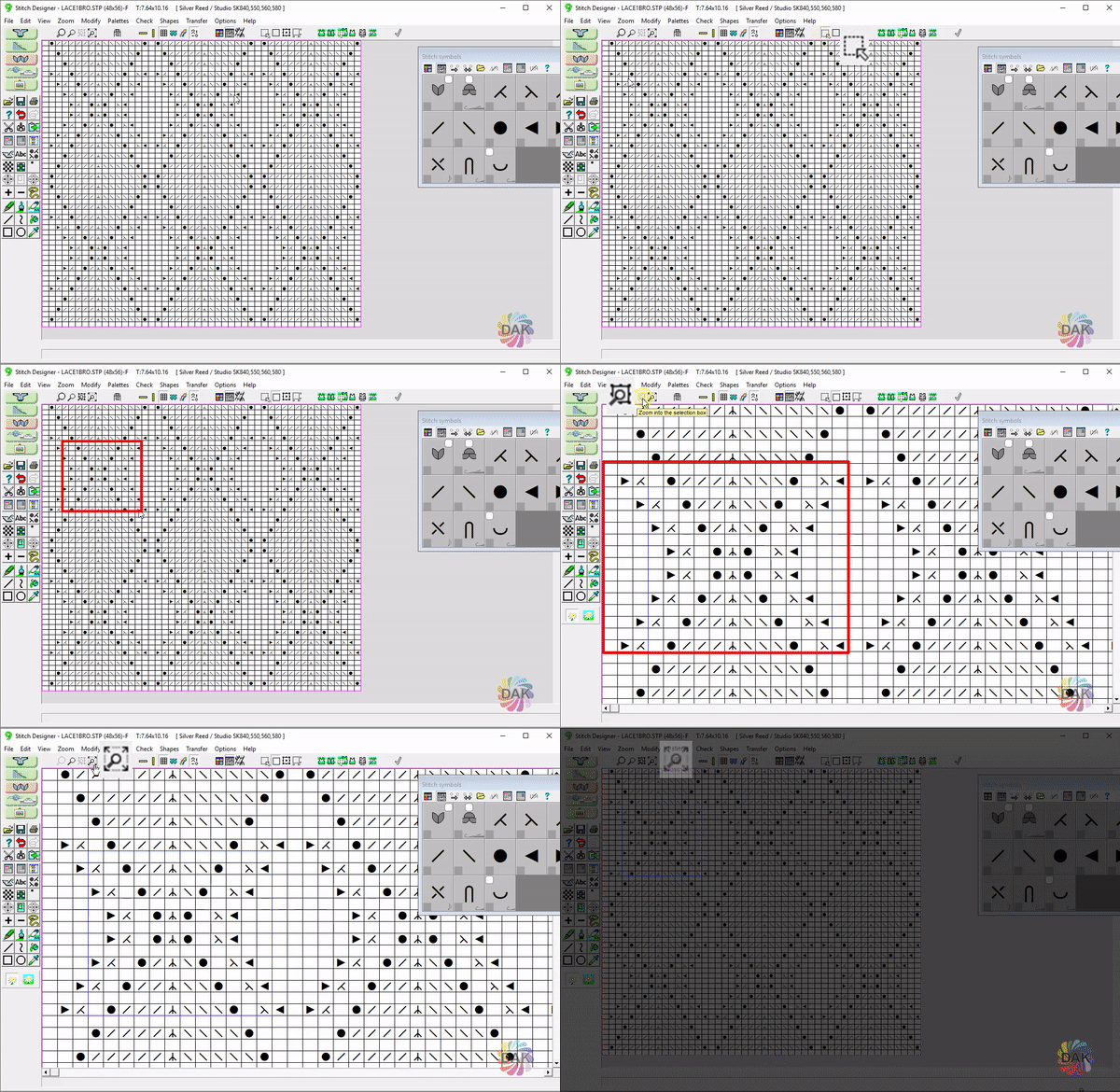
As we work with stitch pattern designs, one of the more powerful features is Selection Boxes.
Selection Boxes:
Isolate a section for editing
Copy and position sections
Use with colors and/or symbols
Save time when working with repeats
Selection Boxes
Transparent/Opaque
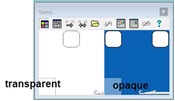
The concept of transparent and opaque is critical when using selection boxes and creating and editing your stitch patterns
Selection Boxes
Daisy Buttons
The Daisy Buttons control how sections of a design display when moved and copied.
Motifs can be imagined as self-contained set of colors and symbols that can be used over and over. Importing them and creating a new stitch pattern can save design time. Understanding states of transparent and opaque along with the use of the Daisy Buttons will make your design work go more smoothly and quickly.
Daisy Buttons
Daisy Buttons Move/Copy
Selection Boxes
Moving a selected area
Sometimes when moving a selection box we get unexpected results. Move and position areas within your design without surprises.
Move and Copy
Selection Boxes
Select a lesson from the menu above to get started.