Whether working with an existing stitch pattern or one you've created,
DesignaKnit provides many options for modifying and refining your design.
Topics Covered
Variations
Combine Tool
Help! I Can't See My Stitch Pattern
Change the Canvas Size
Eraser Tool
Cancel End Needle Selection
Manipulation Tags
Add these commonly used tips and techniques to your DesignaKnit bag of tricks.
Manipulate your Stitch Pattern
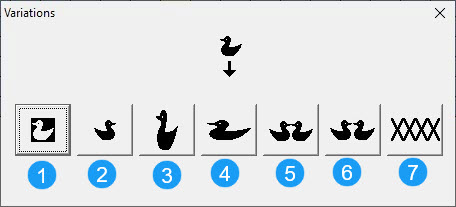
Variations
Click a tool name for details.
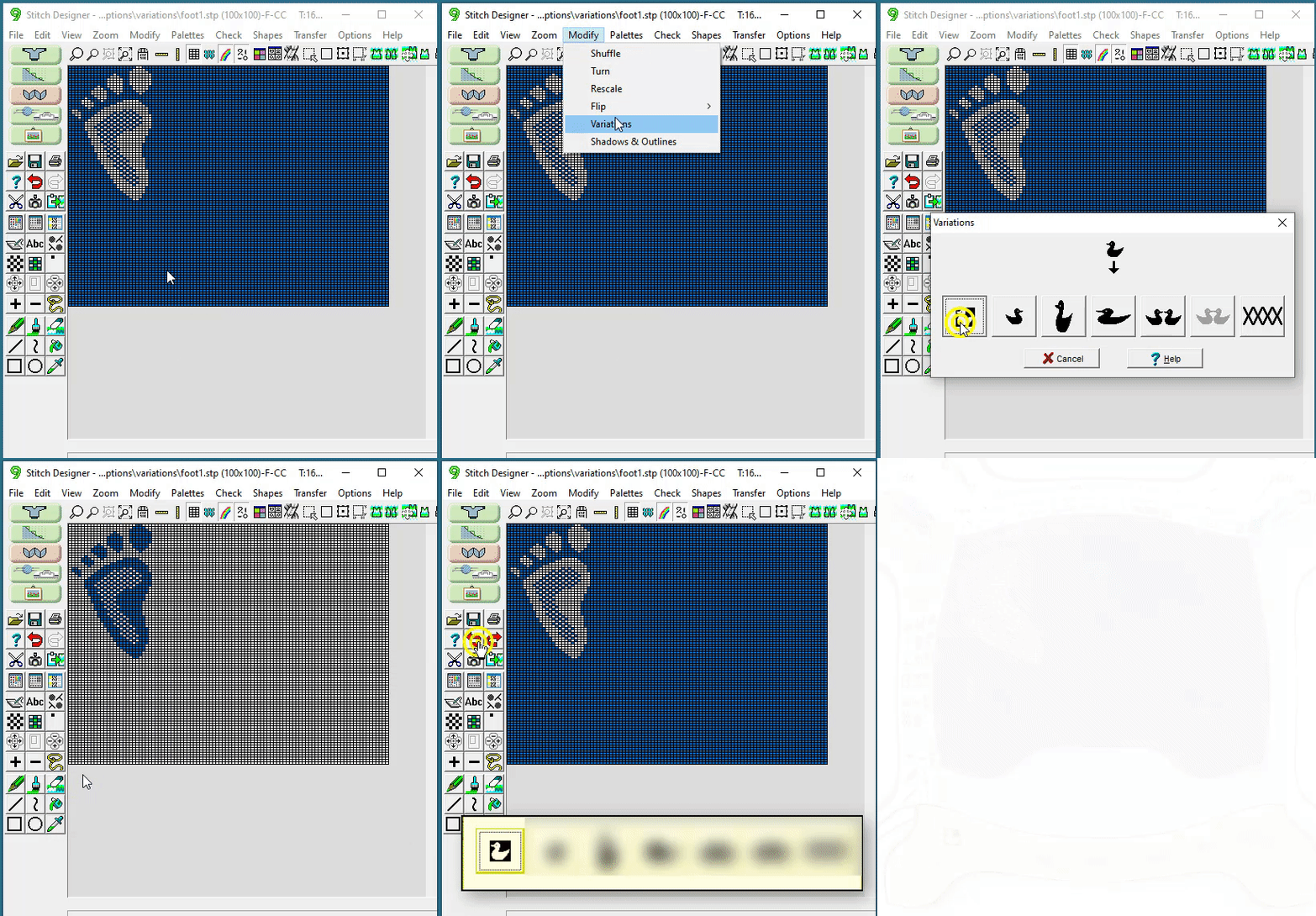
1. Negative
Note: Negative can only be applied to patterns that have two colors per row.
If it is attempted on a pattern with more colors an error message will appear.
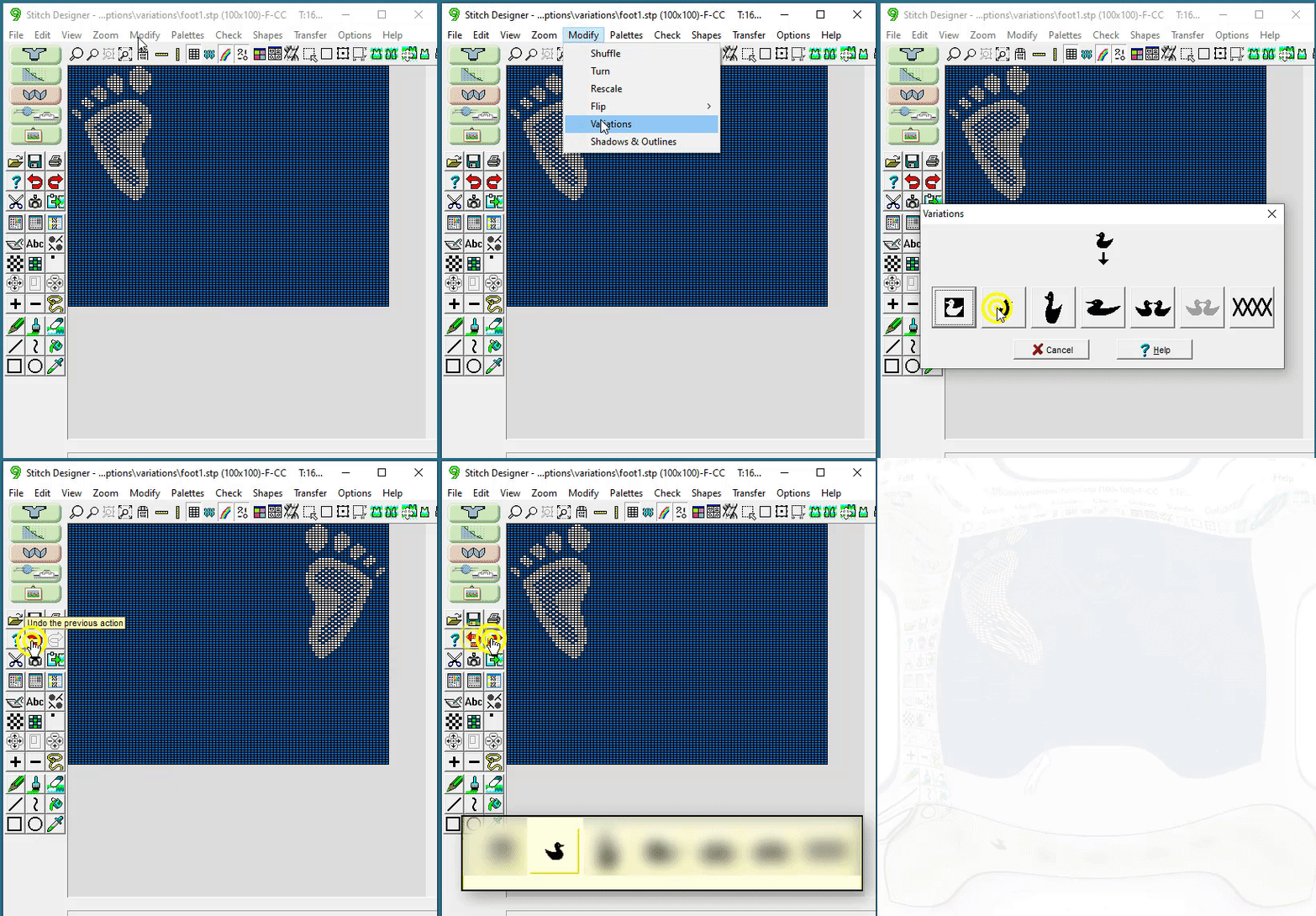
2.Flip
Flip
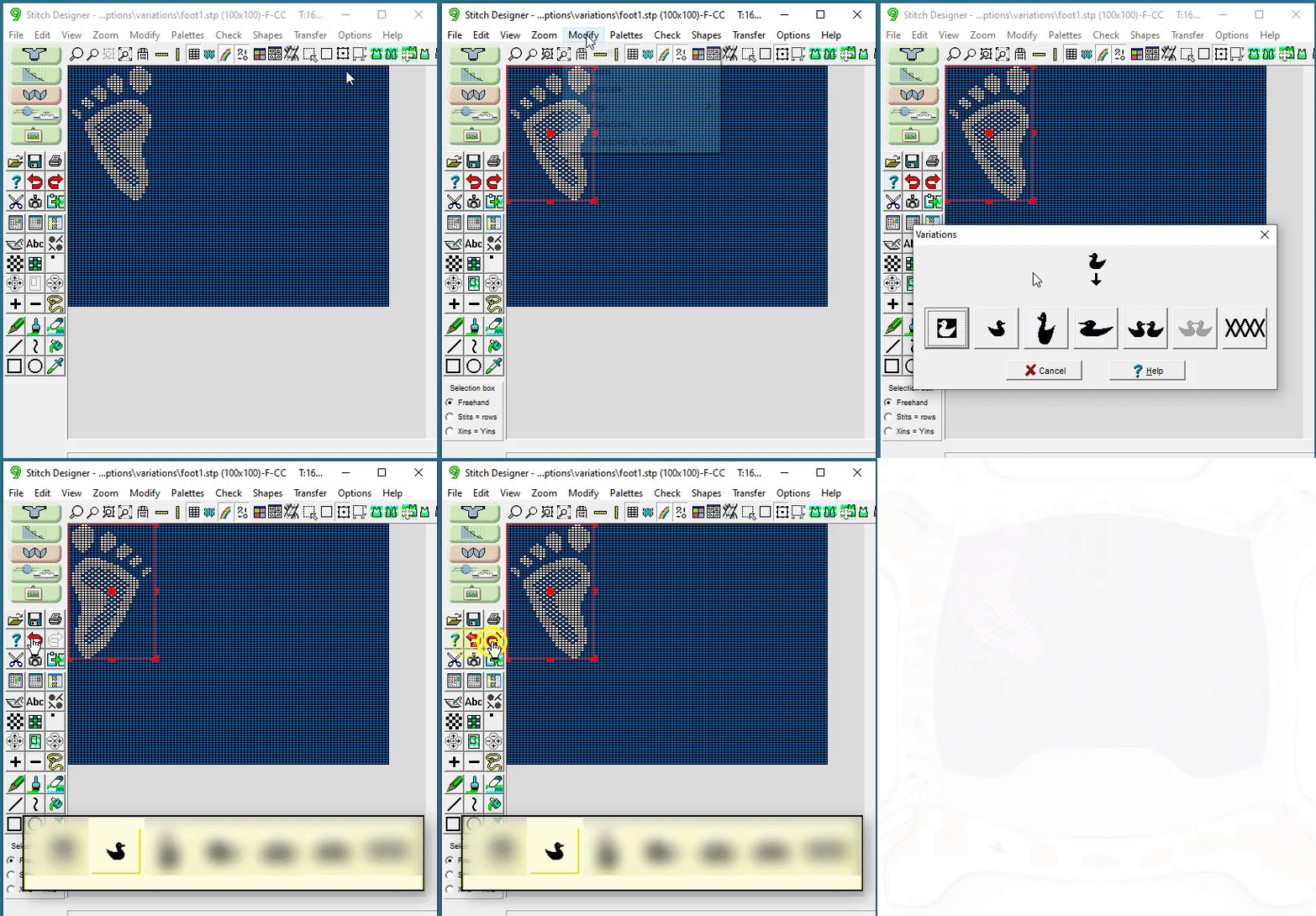
Flip without a selection box
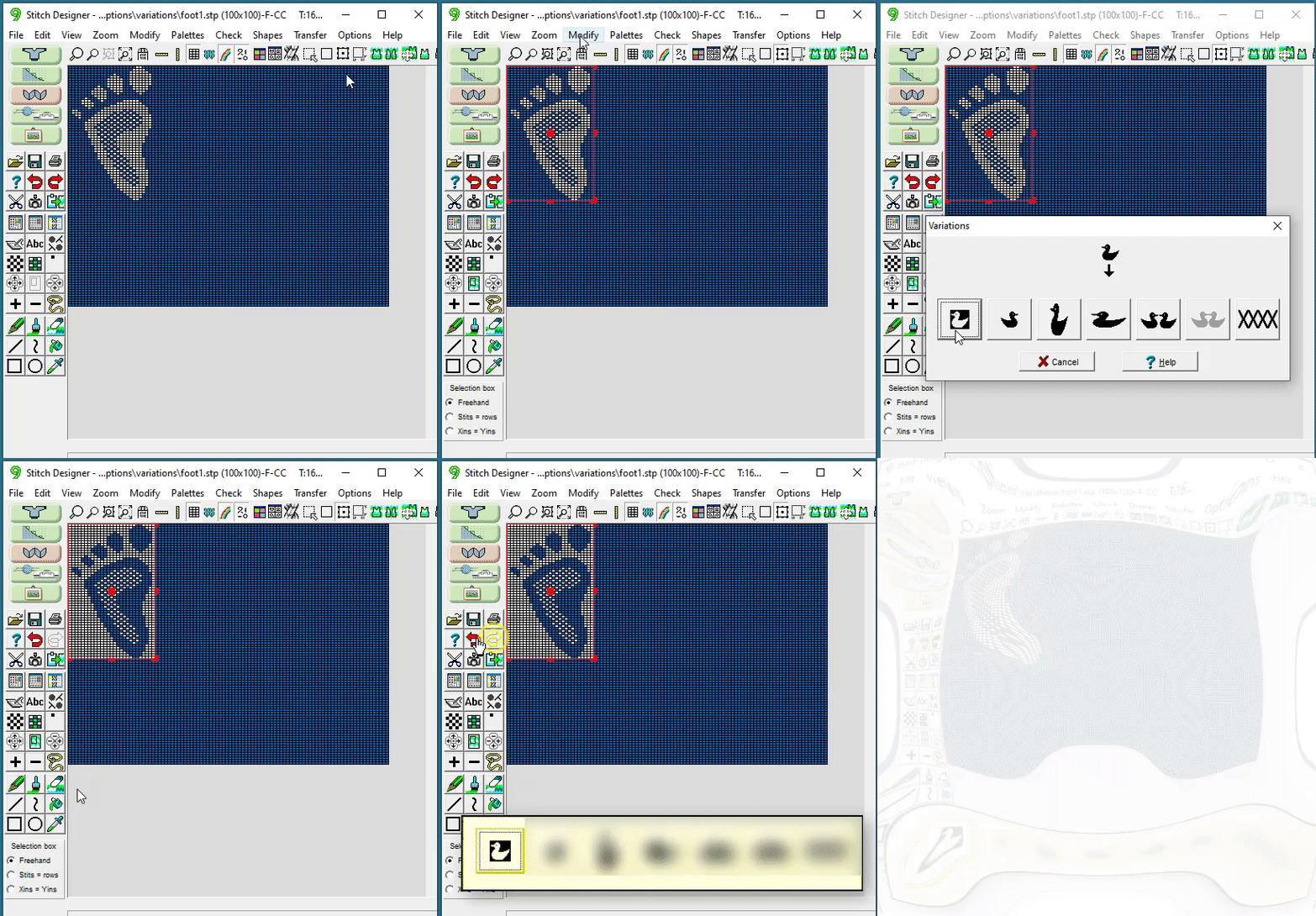
Flip with a selection
This works the same as flip from the menu
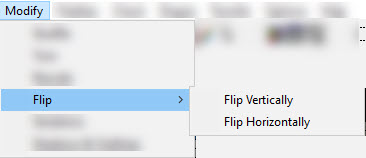
With > Flip from the menu you can choose to flip horizontally or vertically.
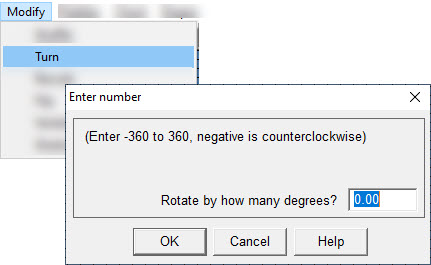
With > Turn from the menu you have more options for flipping the design.
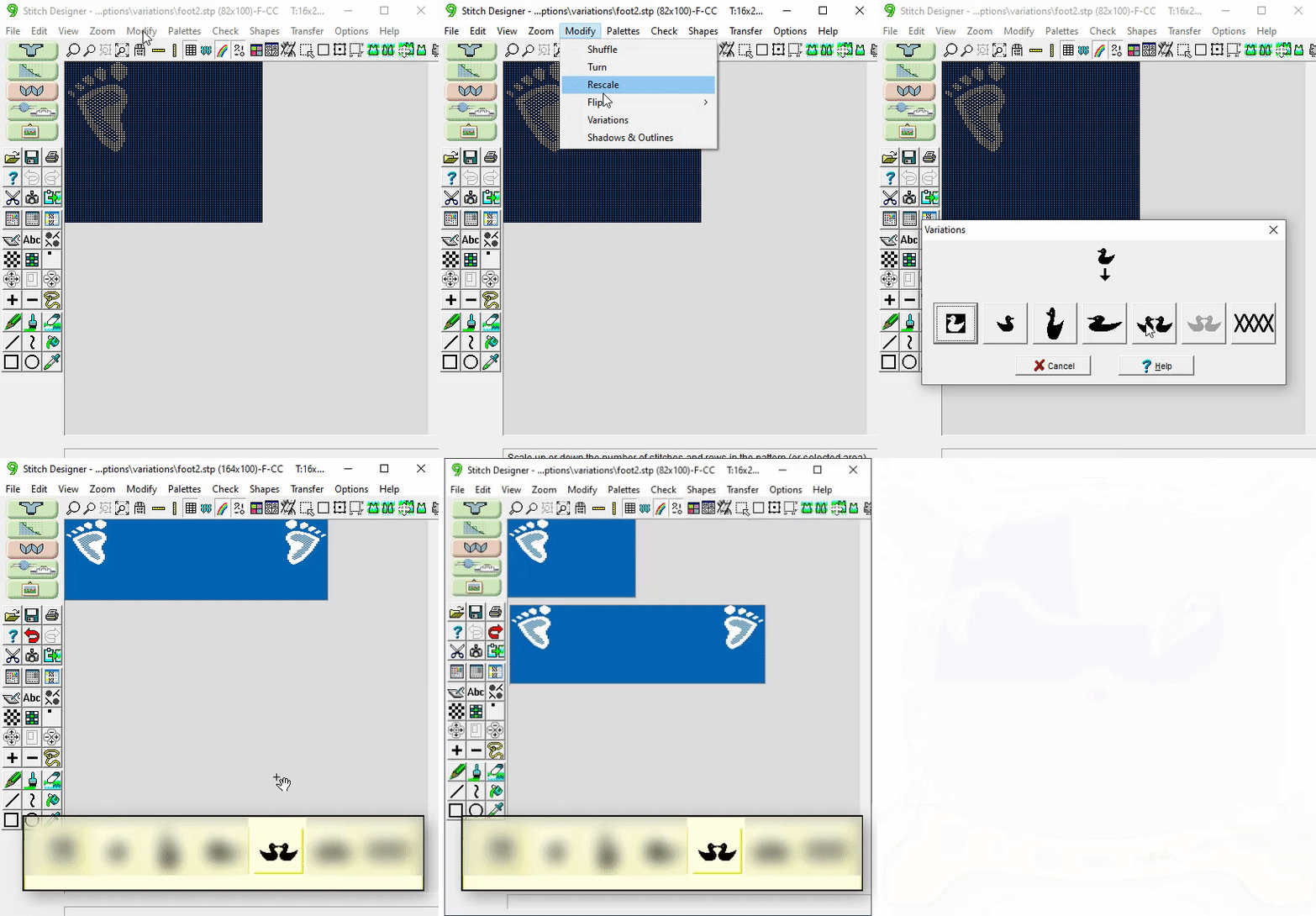
3. Elongate (Double High)
Elongate (Double High)
4.Elongate (Double Wide)
Elongate (Double Wide)
Without a selection box
With a selection
If you are using a punchcard machine, keep the stitch number (24) limitation in mind when using double wide.
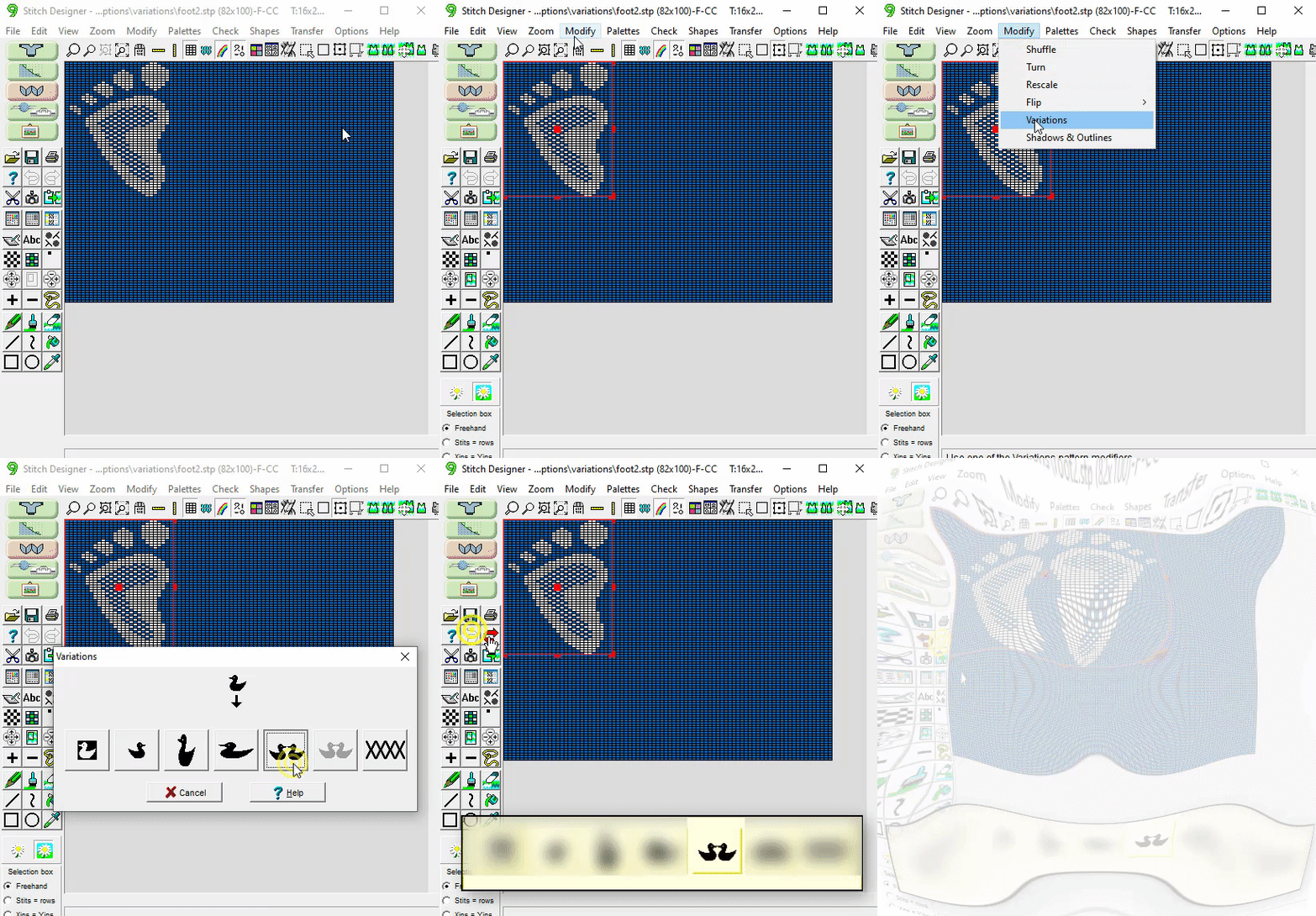
5. Mirror
Mirror
Reflect a stitch pattern or a selection within a pattern.
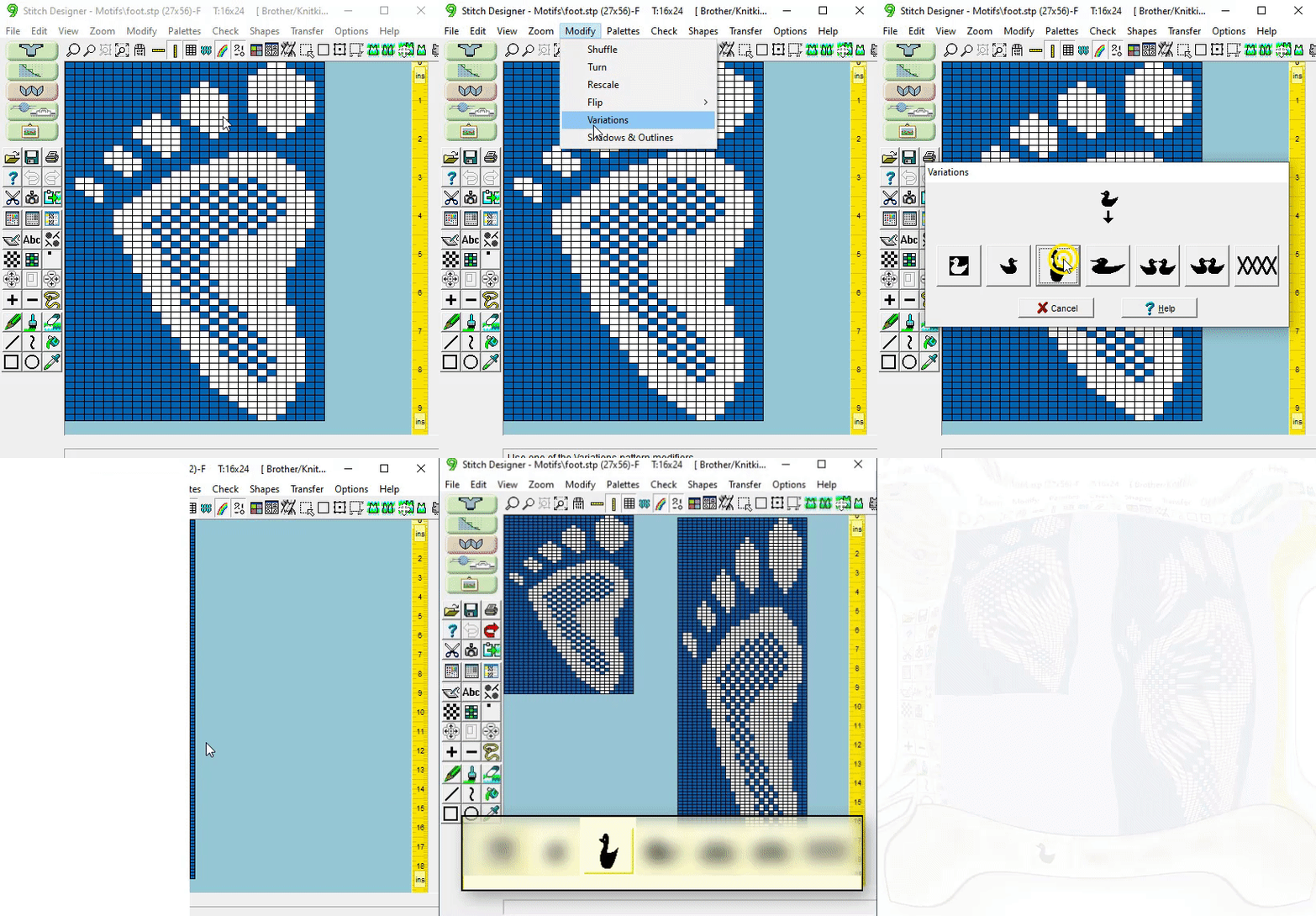
Similar to Flip and Turn, Mirror makes a copy of the design or selection.
Mirror the Canvas
Notice the entire canvas is duplicated and enlarged.
Mirror a Selection
When a selection box is active, only the selected area is mirrored.
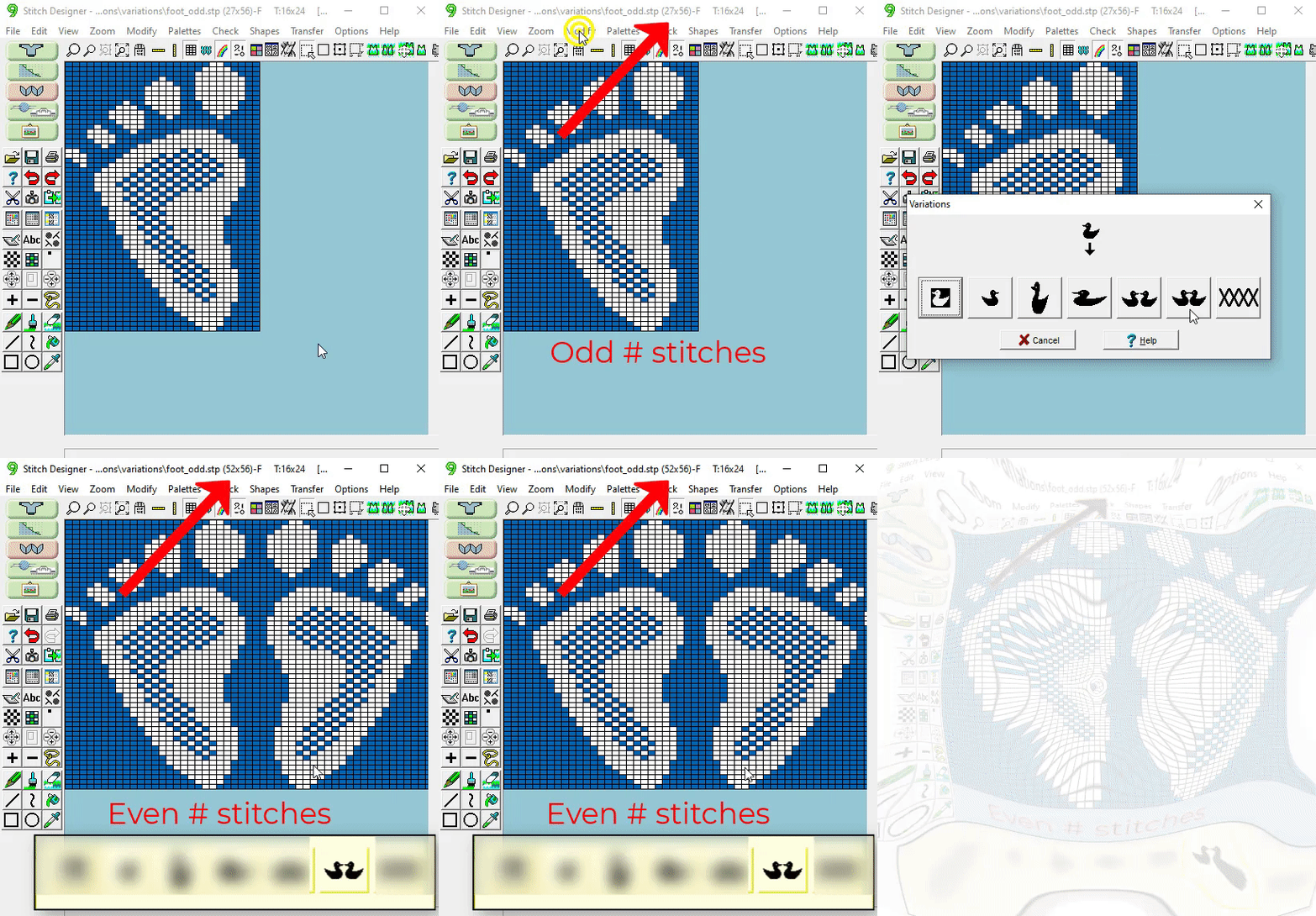
6. Mirror Even/Odd
Mirror Even/Odd
If the motif being mirrored has an odd number of stitches, DAK will remove a column of stitches when mirroring to make the stitch count an even number.
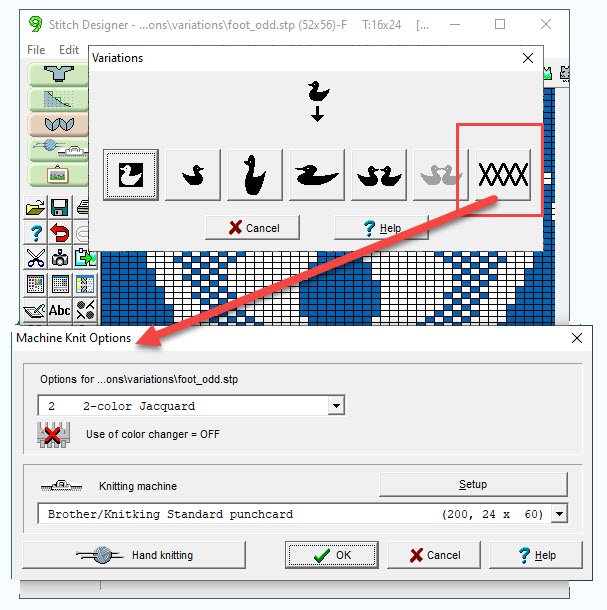
7. Knitting Method
7.Knitting Method
If the current knitting method or machine is not correct, use the
"XXXX" button to update the options.
This variation is the same as the menu choice
> Options > Method of Knitting
Manipulate your Stitch Pattern
Combine Tool
Quickly combine stitch pattern and color.
In this example, we've used Graphic Designer to import a stitch pattern.
We'll assign stitch symbols based on the colors that were imported.
The combine tool is a time-saver.
The Combine Tool
Manipulate your Stitch Pattern
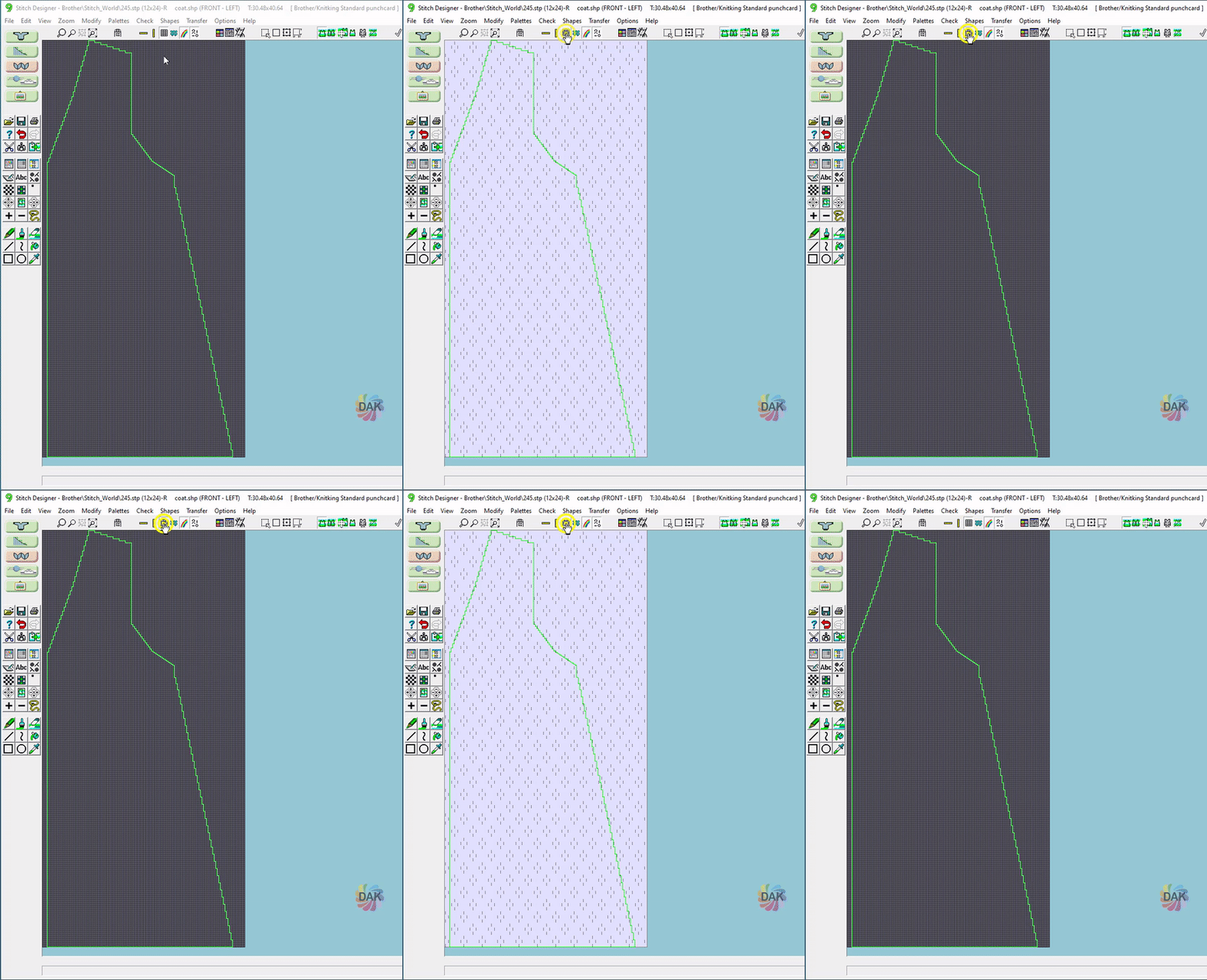
Help! I can't see my stitch pattern
More than one knitter has "lost" their stitch pattern when viewing it in the workspace of Stitch Designer.
After integrating a large shape with symbols, it can sometimes be difficult to see the symbols.
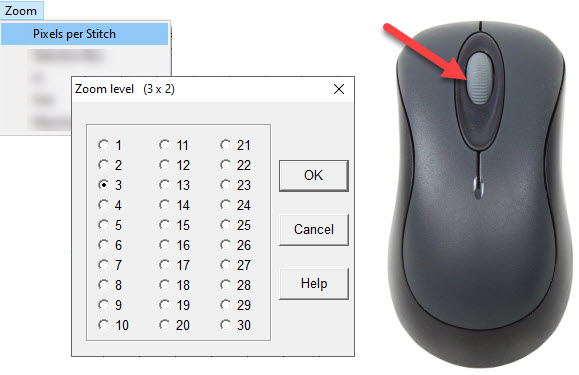
Toggle the "view a stitch grid" tool Use your mouse or "zoom" from the menu
Manipulate your Stitch Pattern
Change the Canvas Size
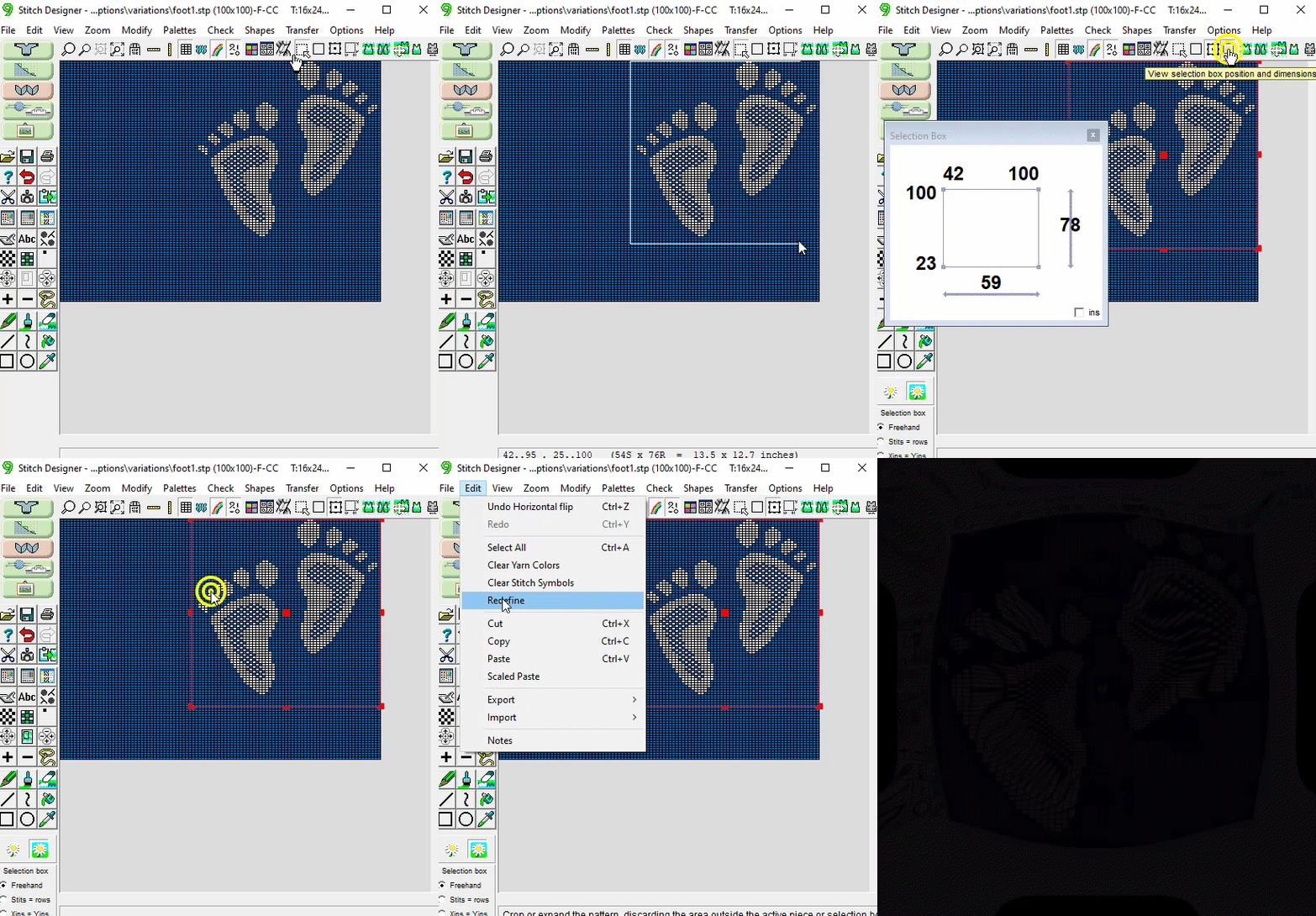
Redefine
Tools used:
Quickly change the size of your canvas.
Draw a selection box
Use the Position and Dimension tool for accuracy
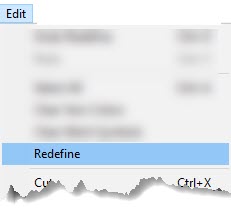
Menu >Edit > Redefine
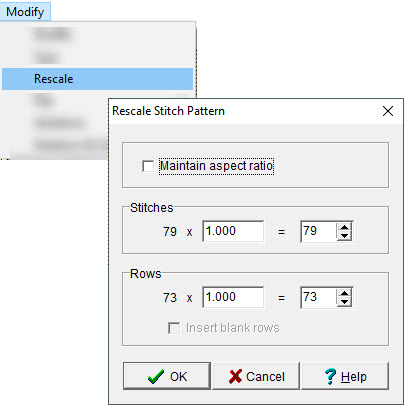
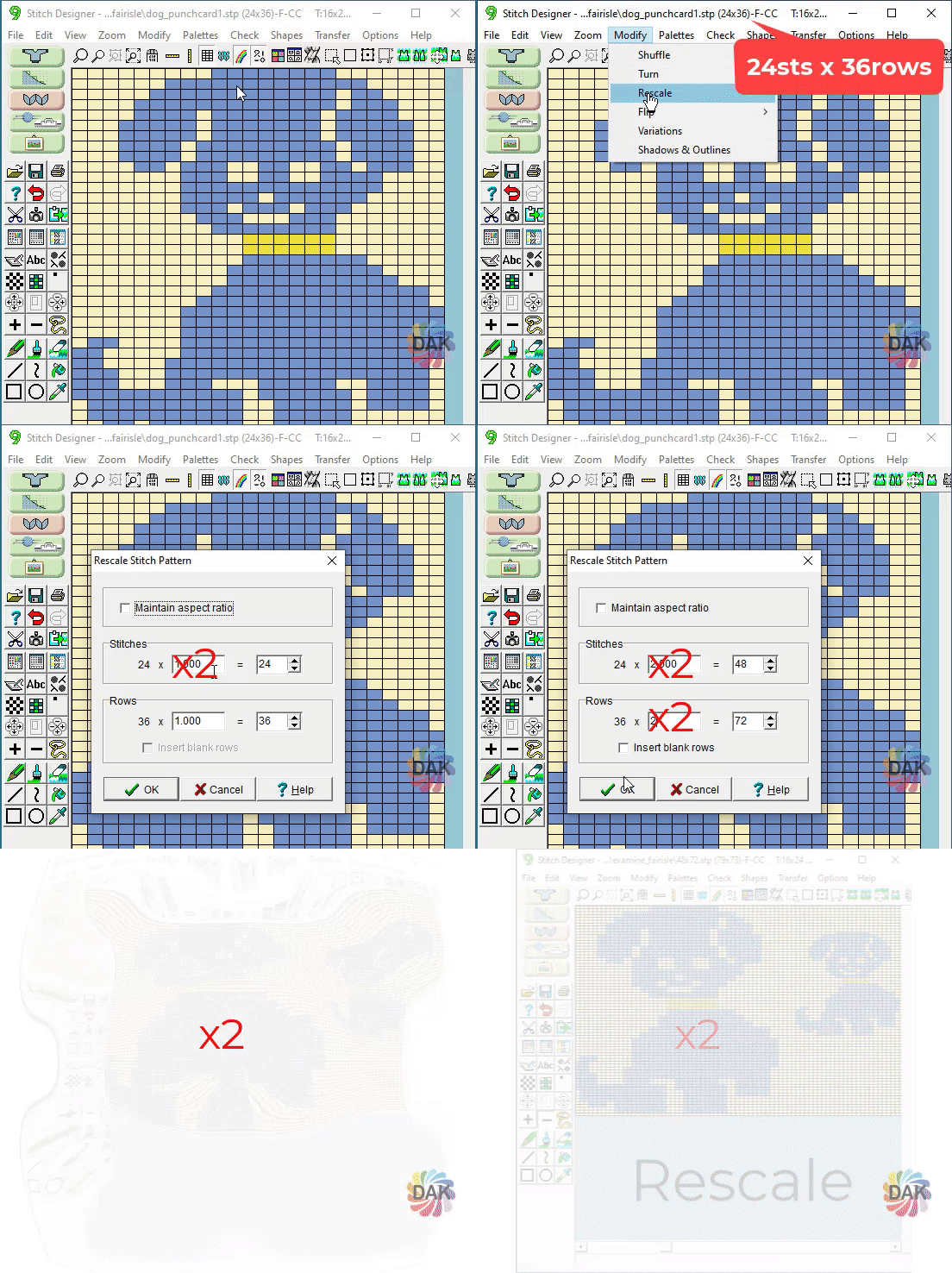
Rescale
Rescale the entire stitch pattern
>Modify
>Rescale
Notice that any existing colors and symbols will be re-sized. If you want to add stitches and rows without impacting the existing colors and symbols, use Redefine or
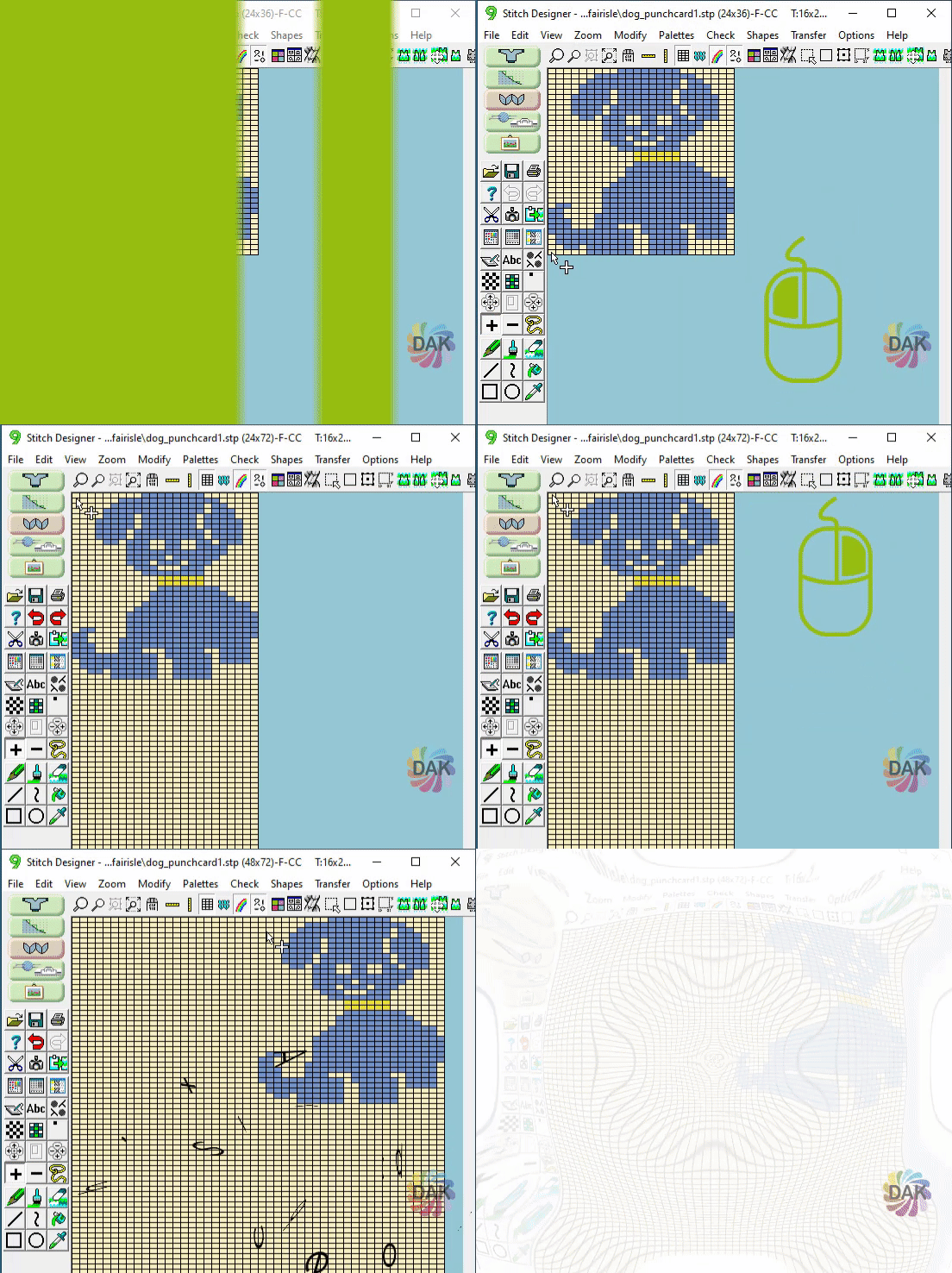
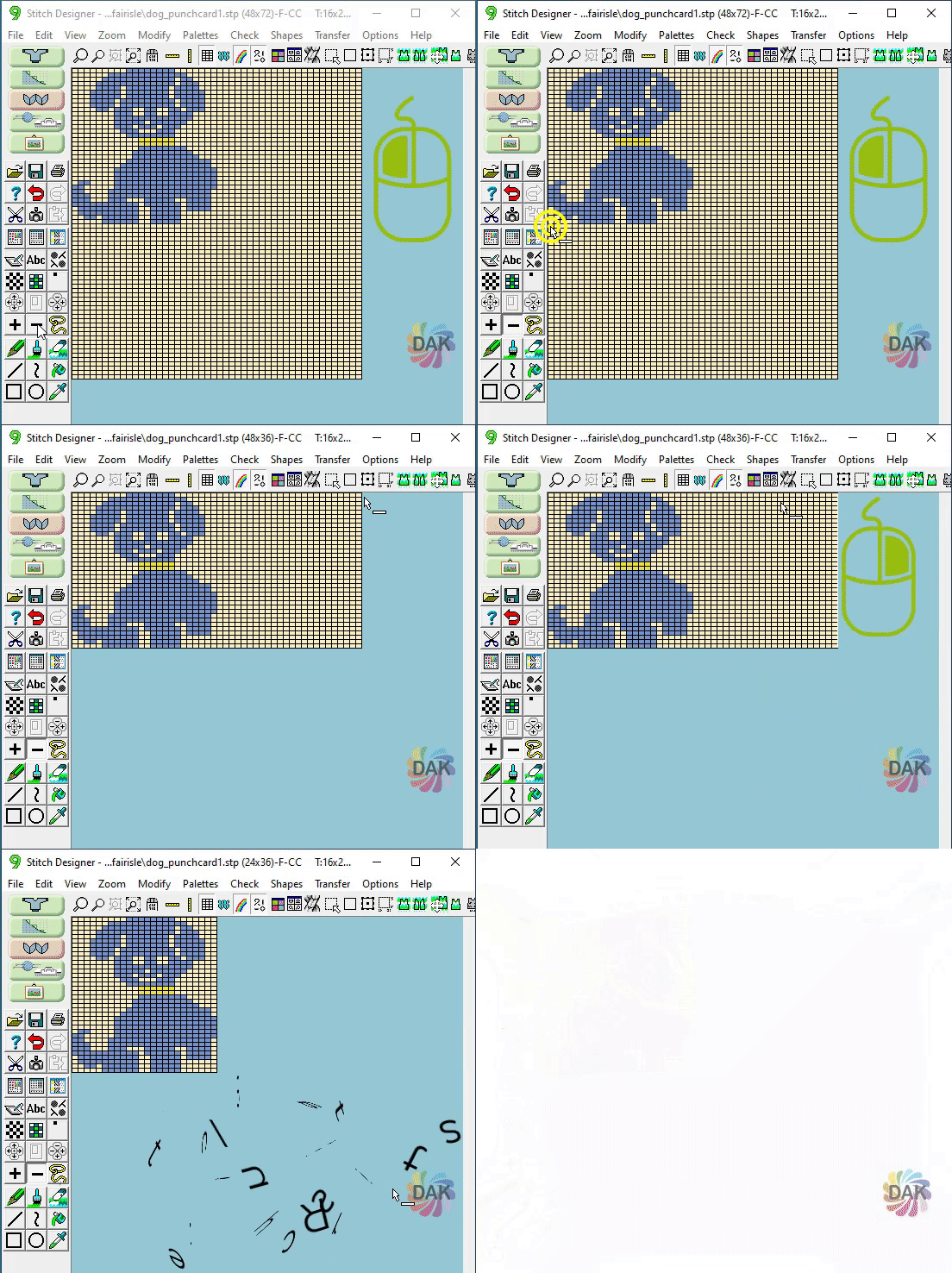
+ - Plus and Minus
Left mouse button = Stitches
Right mouse button = Rows
Add Stitches/RowsRemove Stitches/Rows
Manipulate your Stitch Pattern
Eraser Tool
Manipulate your Stitch Pattern
Cancel End Needle Selection
When knitting in pattern, we often do not want the patterning to occur on the end needles. Follow a few steps to prevent the end needles from selecting.
Manipulate your Stitch Pattern
Manipulation Tags
Import and position motifs with Manipulation tabs to have more control when creating stitch patterns by importing motifs.
Manipulate your Stitch Pattern
Select a lesson from the menu above to get started.