The Cables Palette is the "tool" used to include cables in your stitch pattern.
Cables
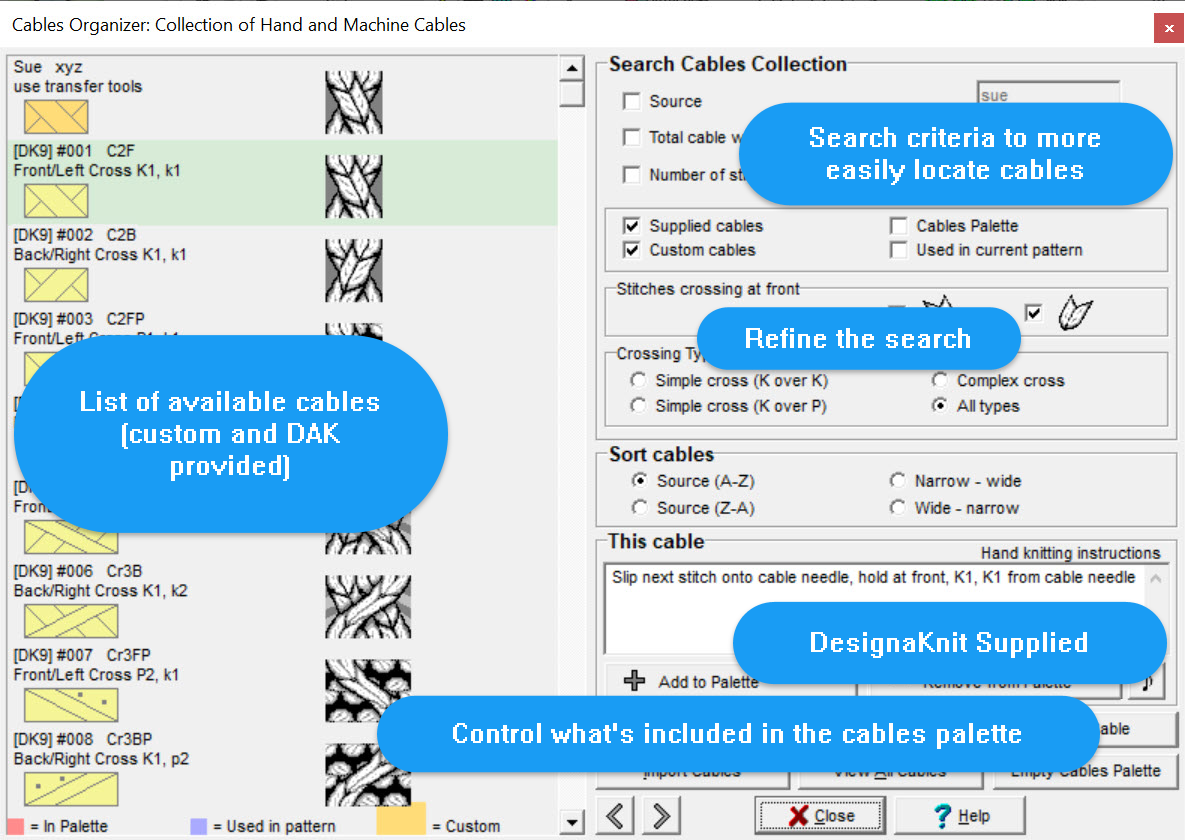
The Cables Organizer
The Cables Organizer can appear overwhelming at first. Keep in mind that most of what you see on the screen are choices to help you find the cable you need to add to the Cables Palette to use in your stitch pattern.
The Organizer does many things:
Displays the available cables, both Custom and DAK provided
Provides you with lots of ways to search for a specific cable
Controls the cables that are displayed in the Cables Palette - Add, Delete and empty the palette from the Organizer
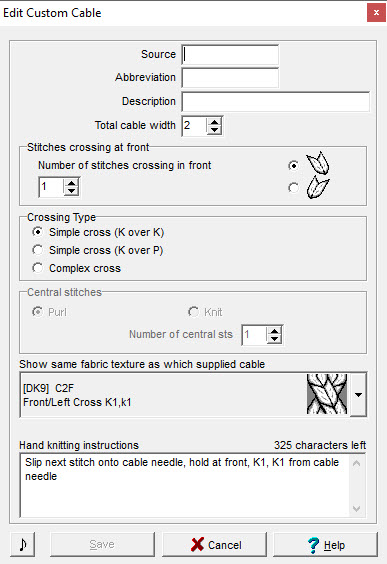
Allows you to duplicate and modify an existing Cable
Displays and controls the status of the cable (custom, used in pattern, Used in Palette)
Sets an alert if the cable is used in Interactive Knitting
Edit the source to make it easier to locate cables you use often
Edit the abbreviation to use when designing, printing and using Interactive Knitting
Add custom knitting instructions
Custom Cables
Custom Cables 2
Cables
Importing/Sharing Cable Designs
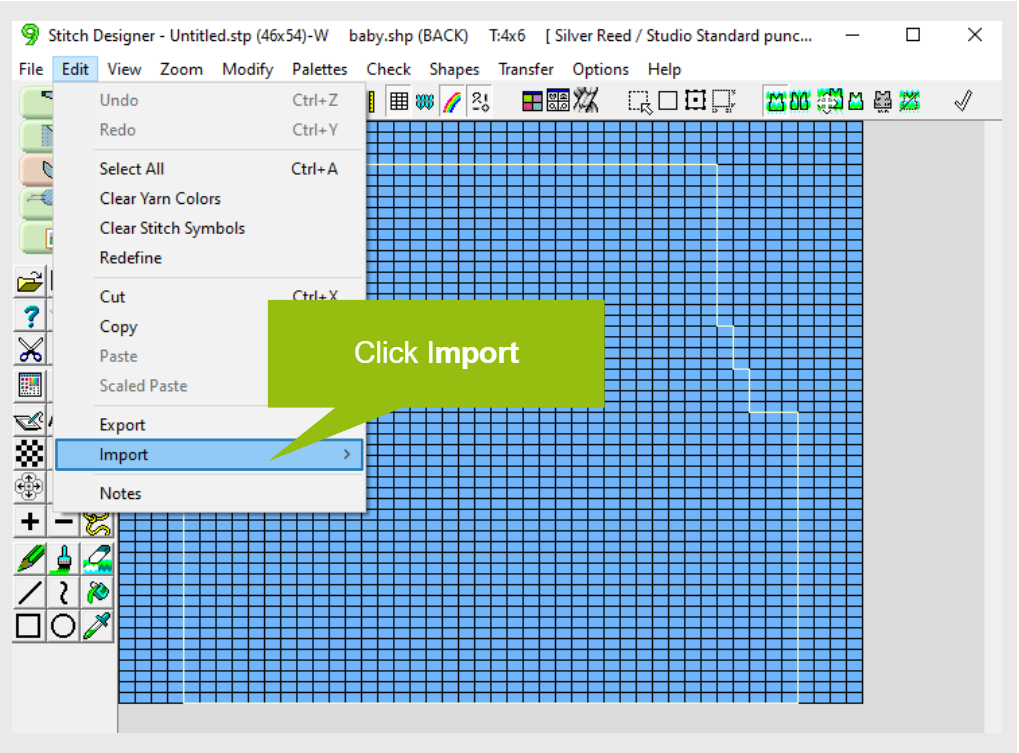
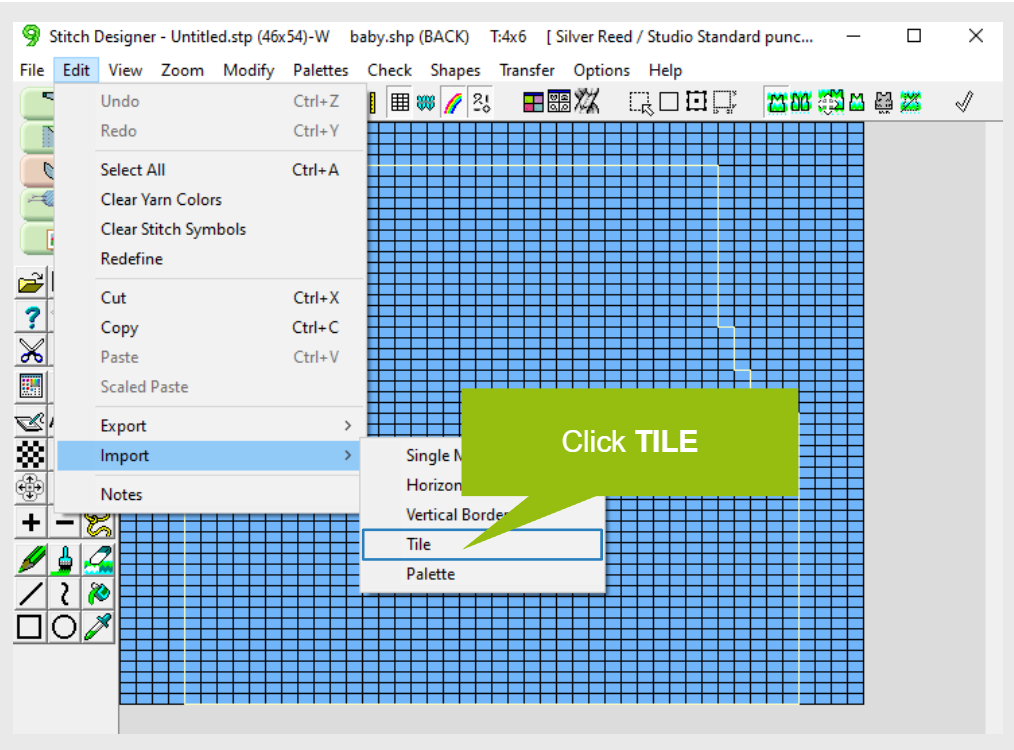
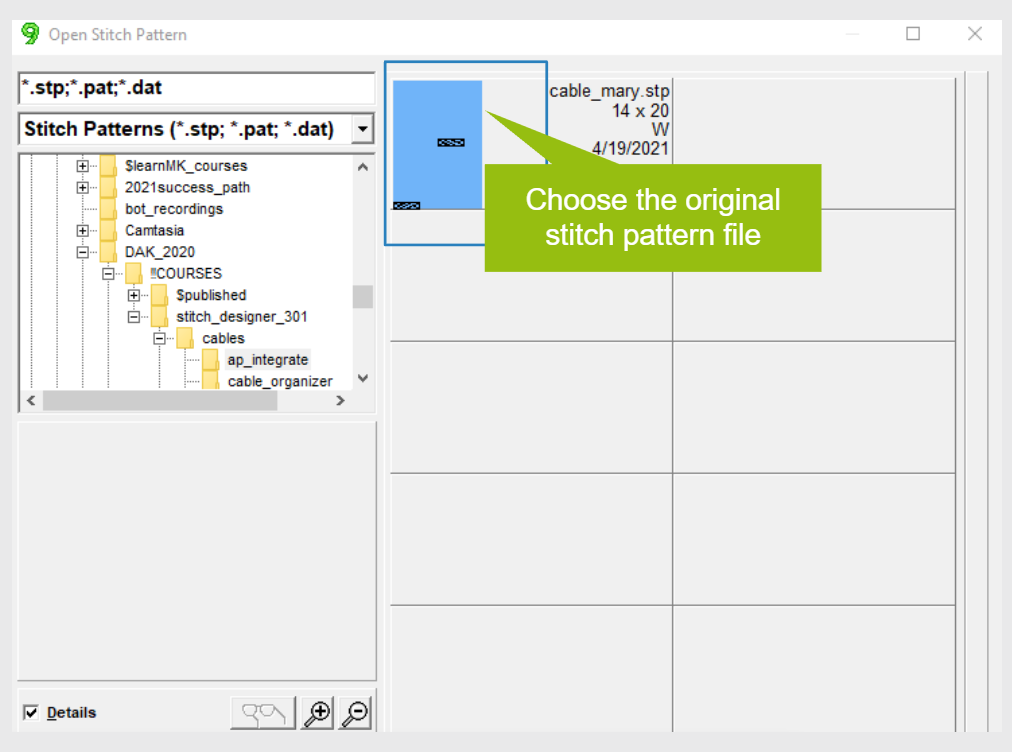
Importing cables allows you to use custom cables that were created in a different stitch pattern.
Cables
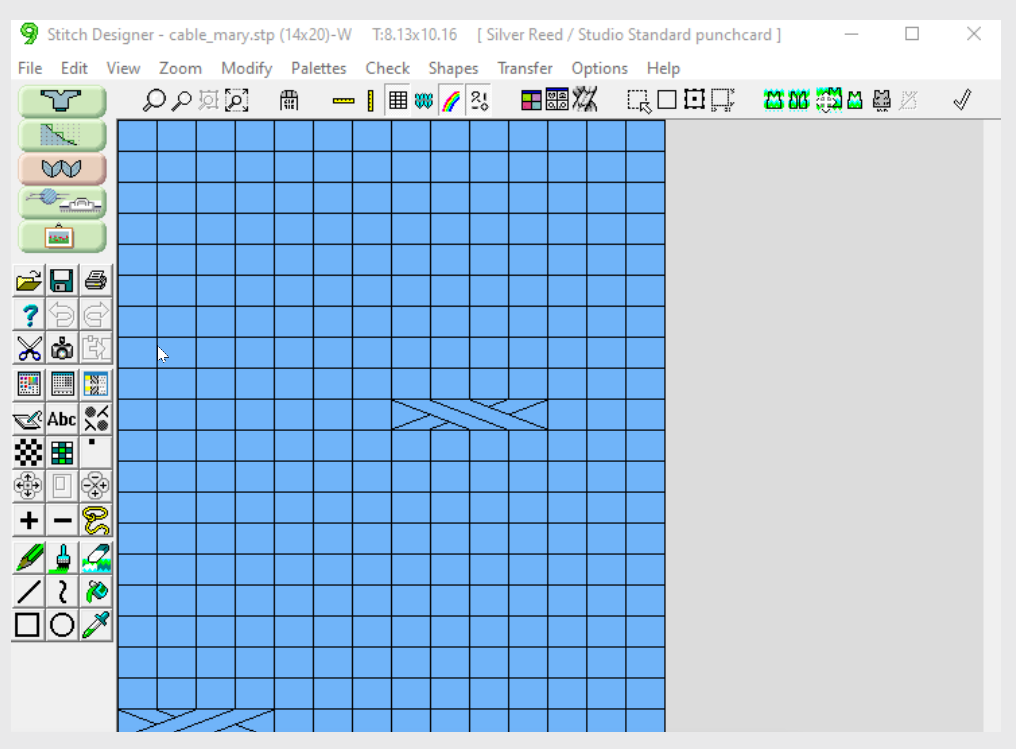
Placing Cables
Placing Cables 1
Placing Cables 2
Duplicate Cables and Fix Mistakes
Cables
3 Ways to Integrate with Garment Pieces
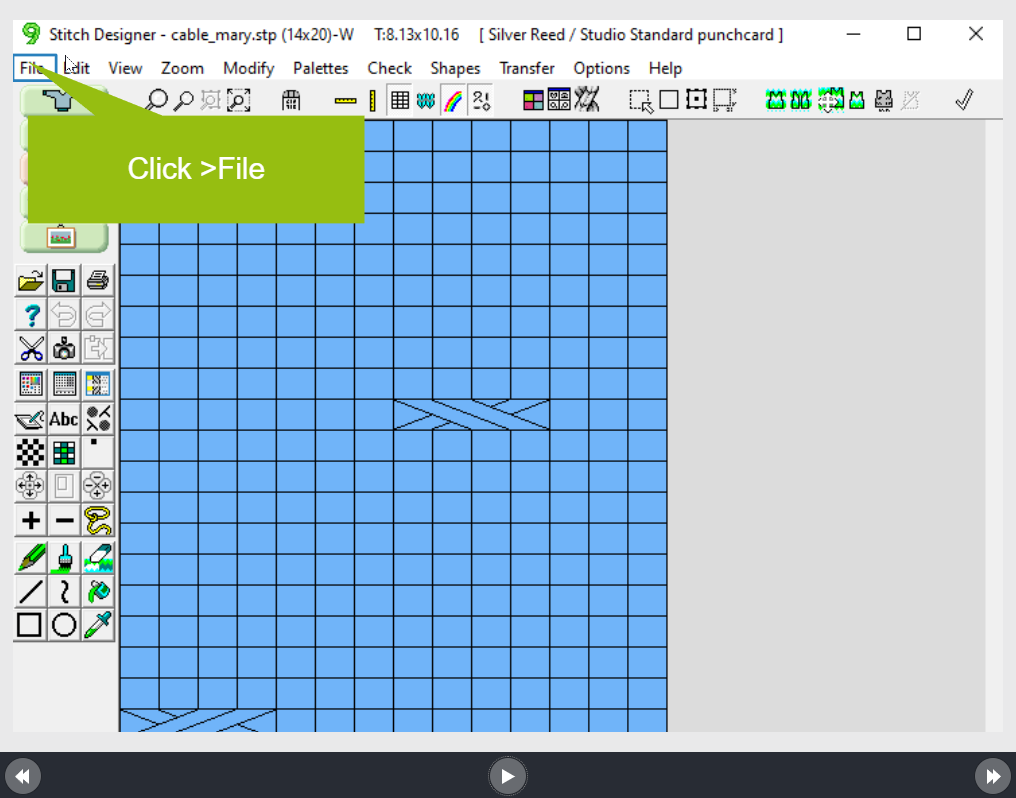
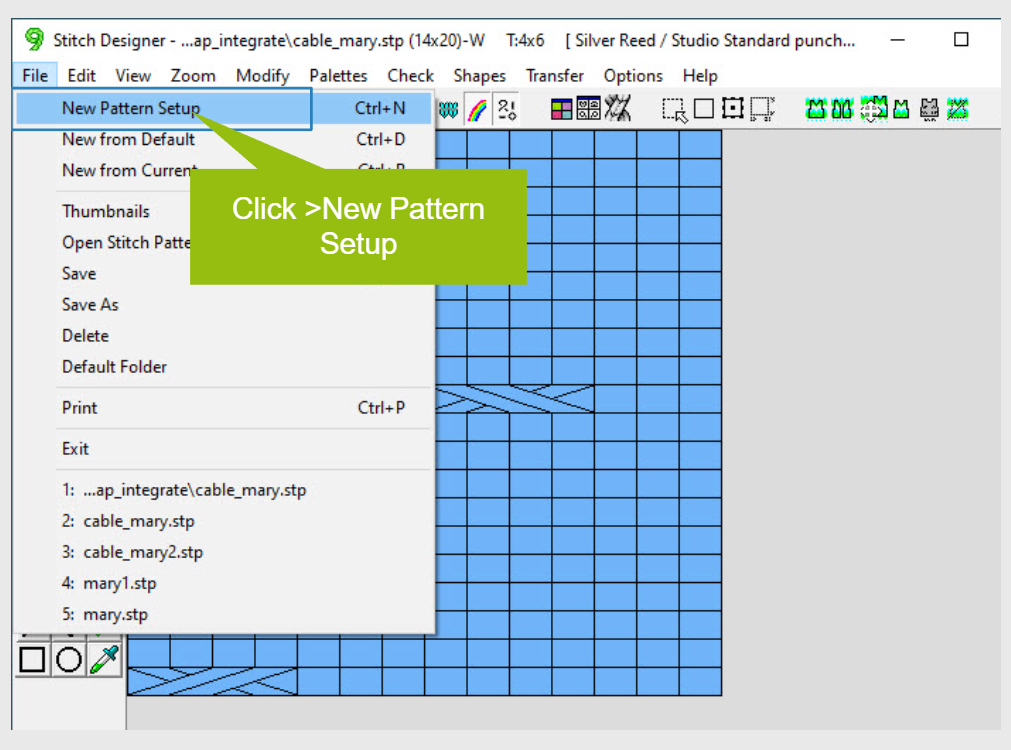
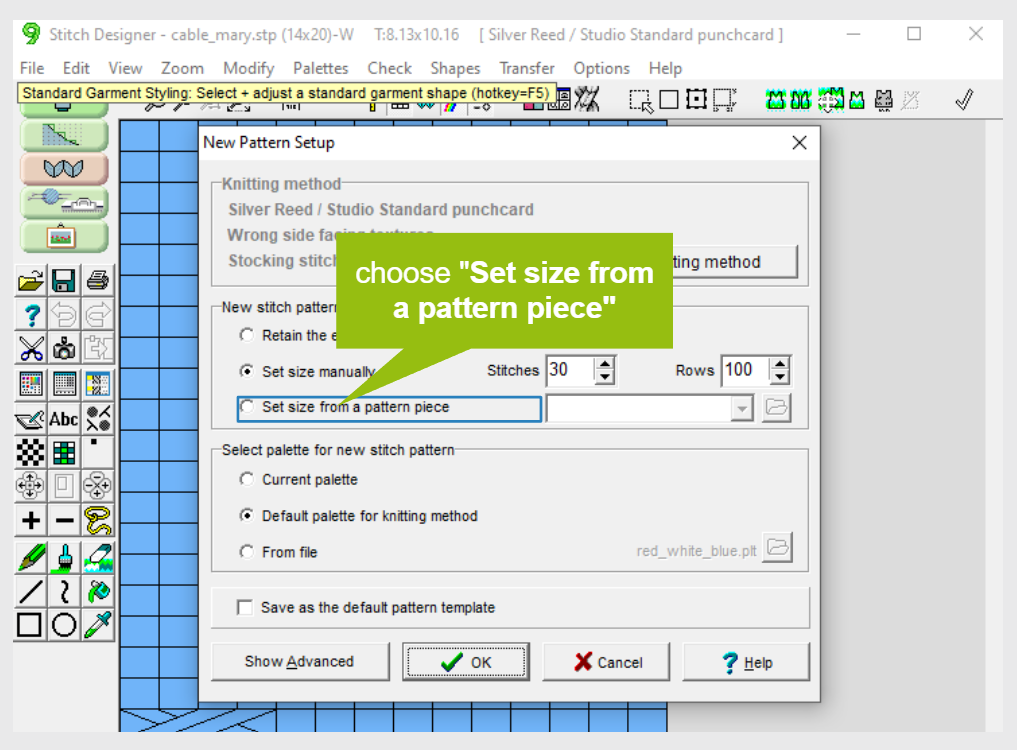
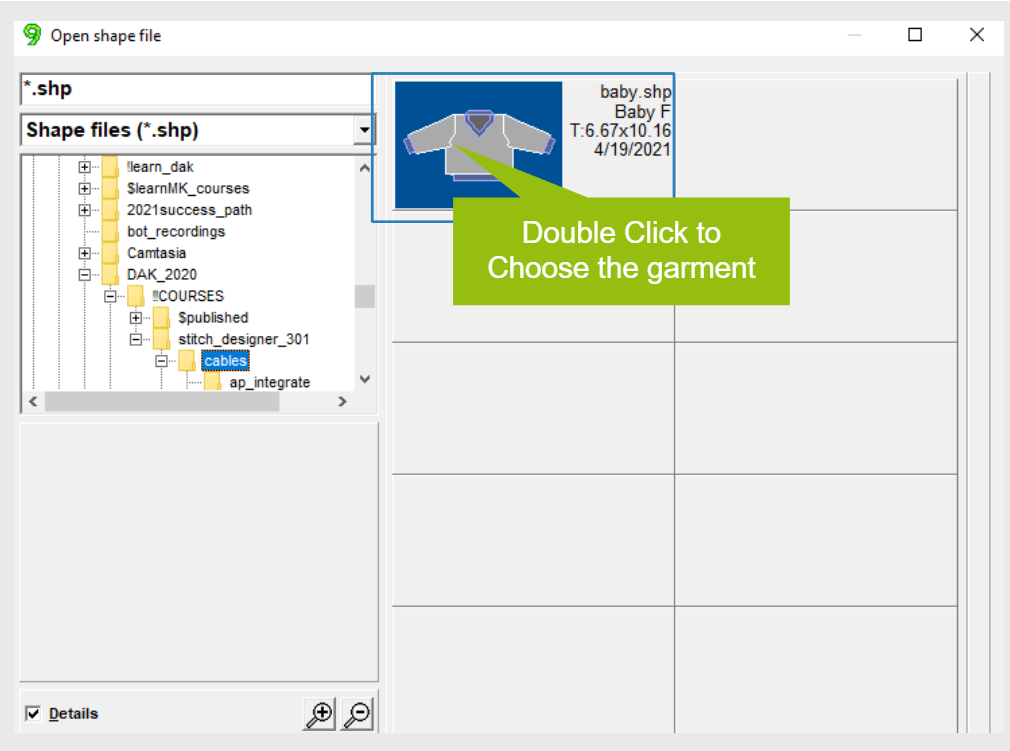
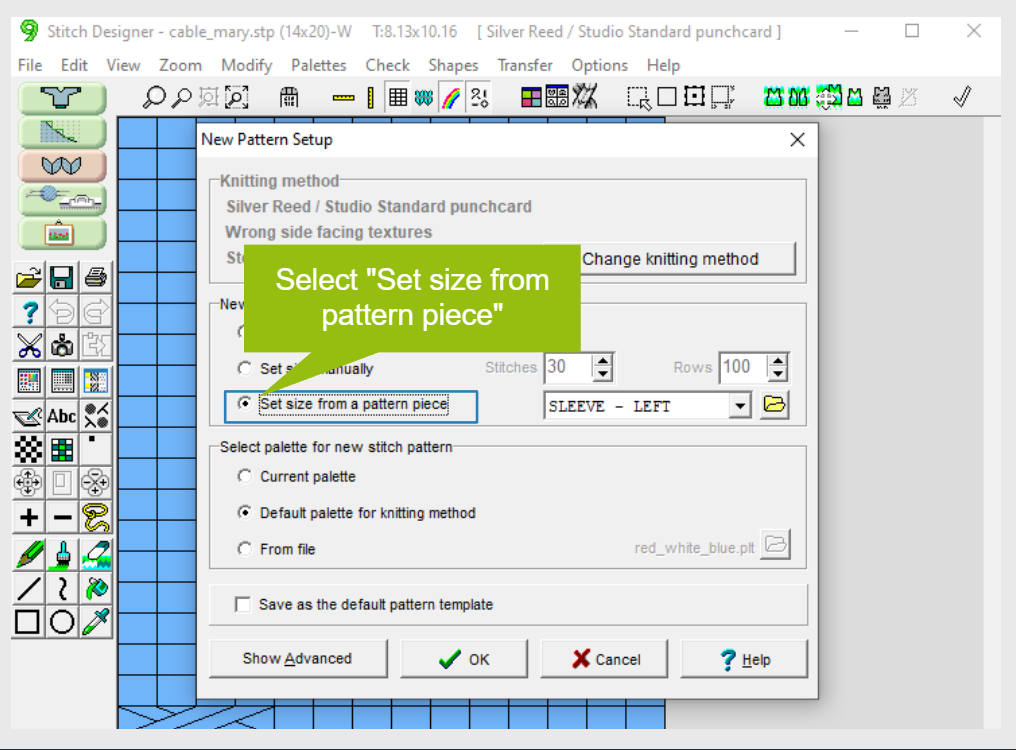
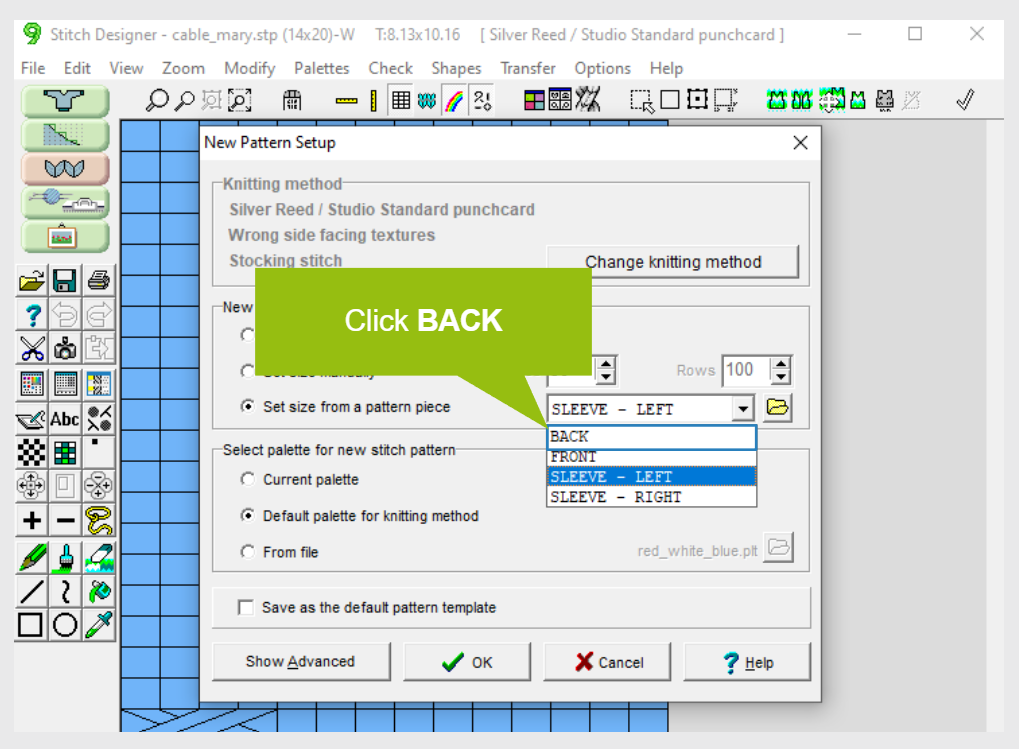
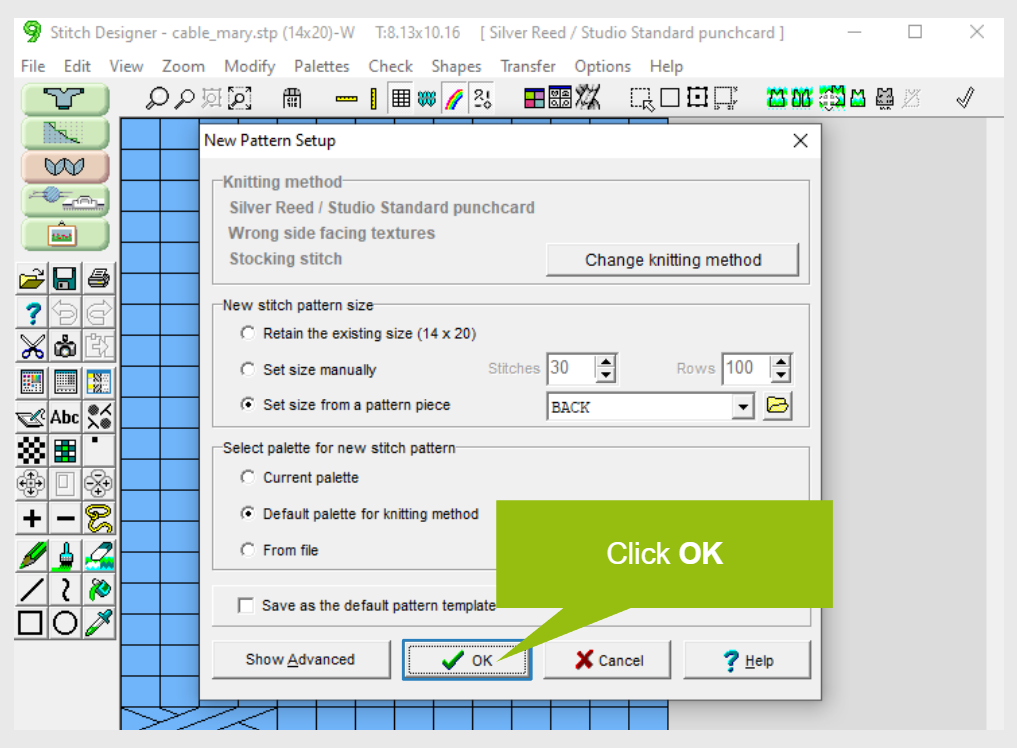
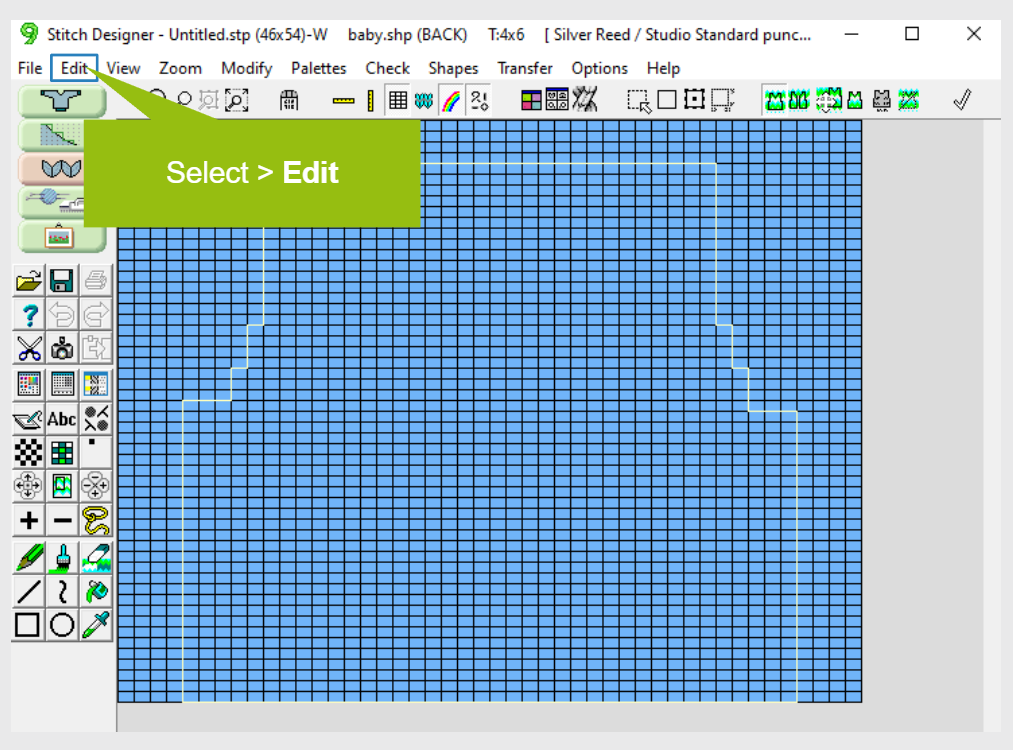
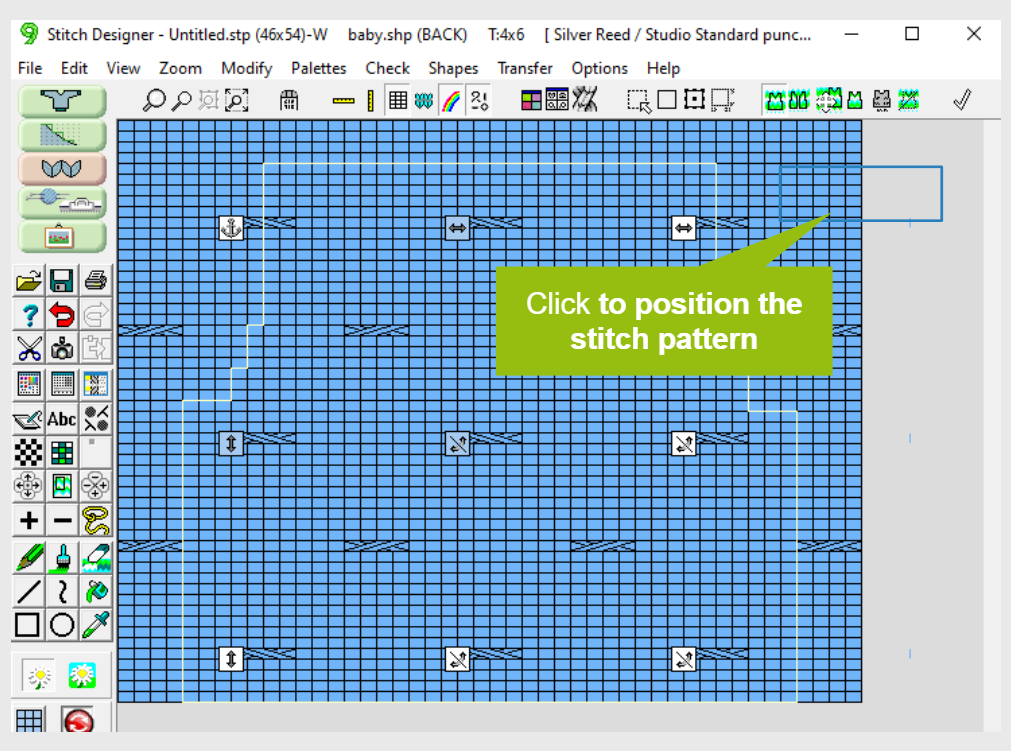
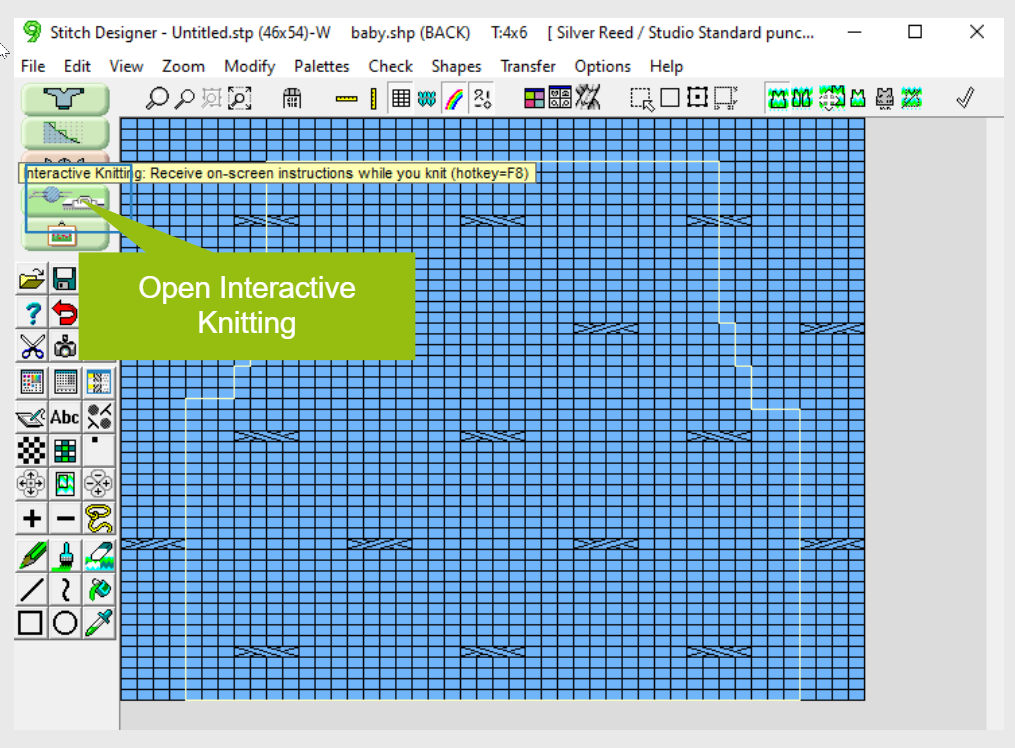
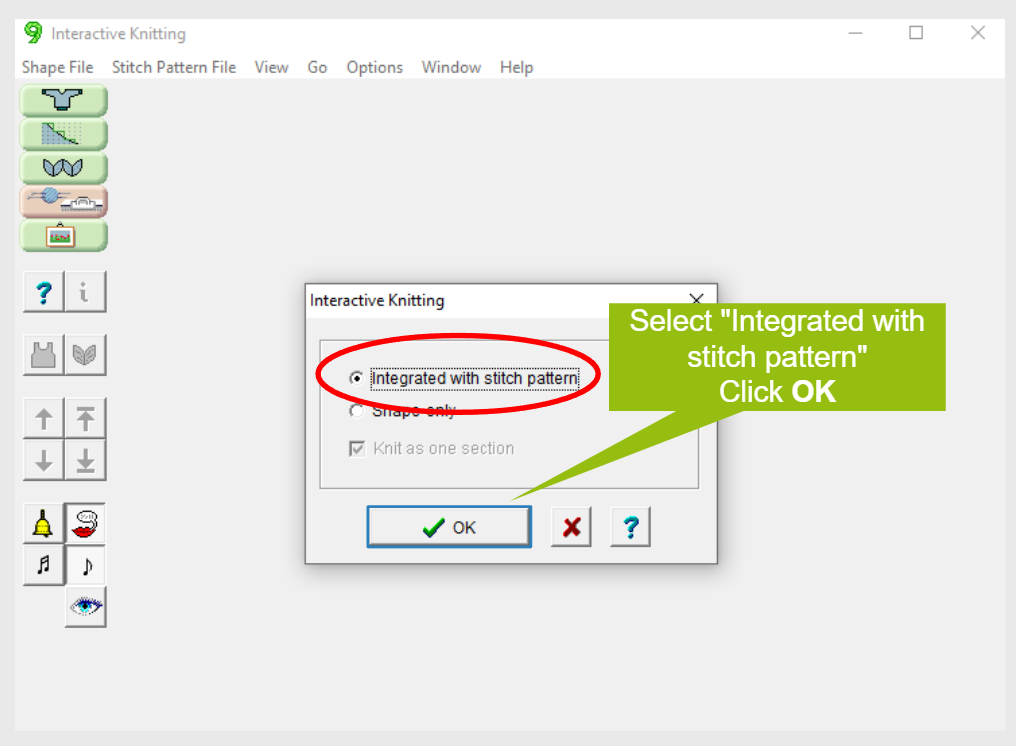
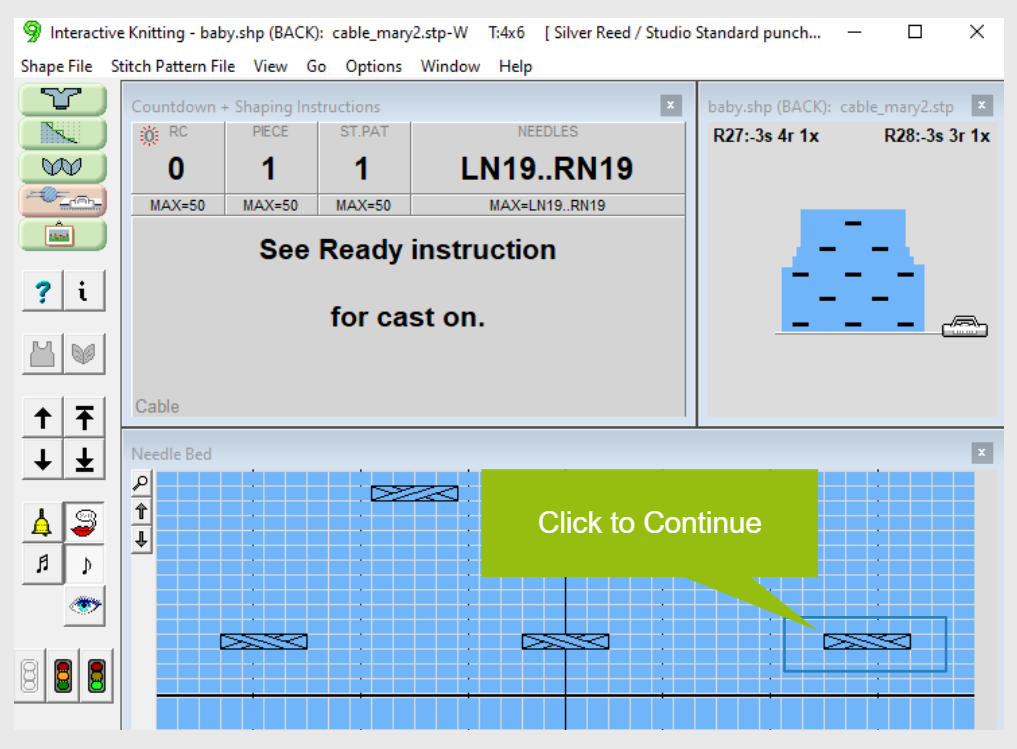
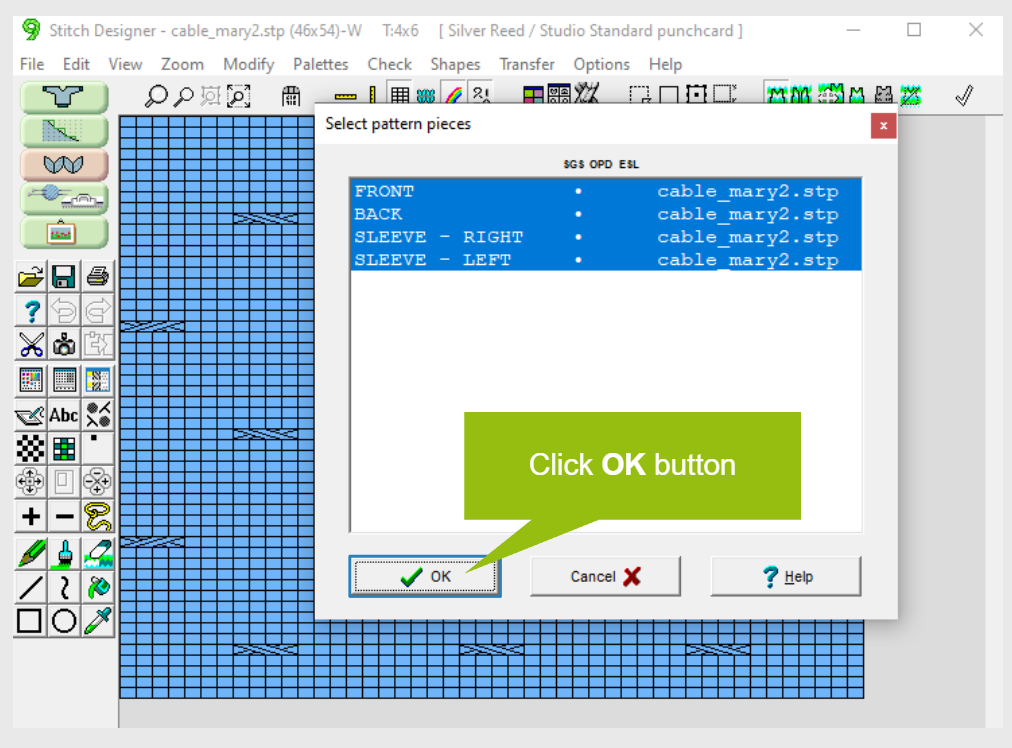
Integrate cable stitch patterns with garment pieces in the same ways as you integrate any other stitch pattern in DesignaKnit.
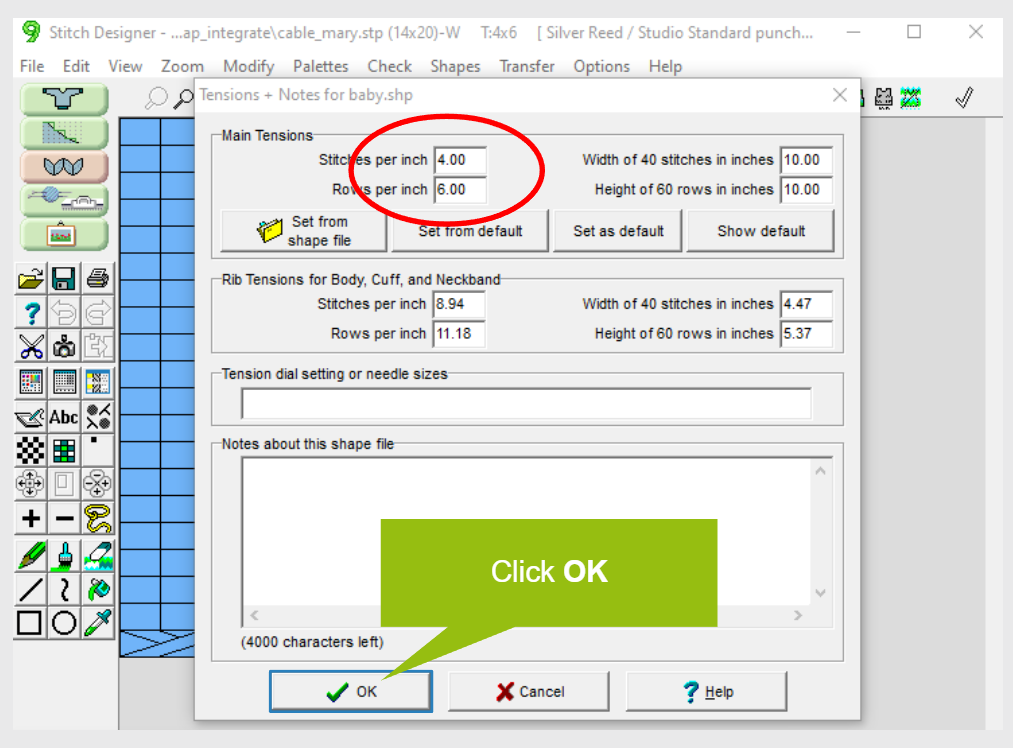
Be sure you set your knitting gauge before positioning the stitch pattern.
Cables
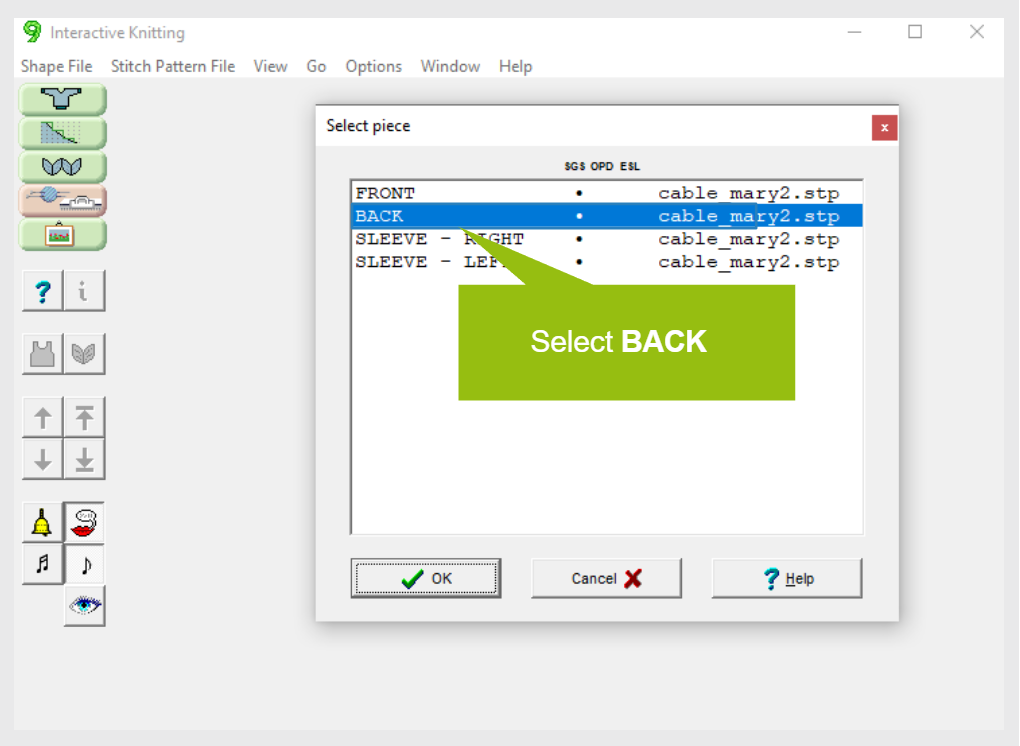
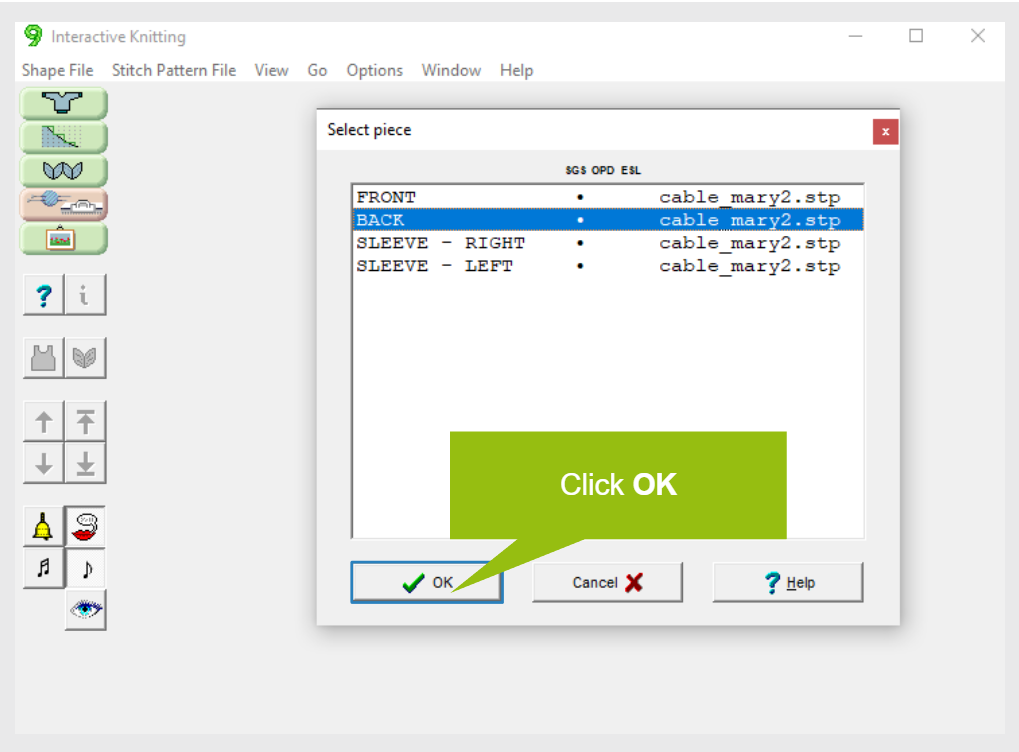
Integrate Practice
Slide 1 of 23
Cables
Select a lesson from the menu above to get started.