Even if you don't use any other part of DesignaKnit, Standard Garment Styling is what you need to create knitting patterns.
Pick and choose from basic knitting styles and create custom patterns sized just for you.
Let's walk through all of the options available so you can get the most out of this section of DesignaKnit.
In This Lesson
The Basis of your Garment Designs in DAK
Explore and Set Up the Workspace
Easier File Retrieval: Thumbnails
File Management
DAK 9 Default File Locations
Standard Garment Styling Overview
Introduction and the Workspace
The Basis of your Garment Designs in DAK
Use the built-in garment shapes and sizing charts "as-is" for basic pattern creation.
~Or~
Use the basics as a starting-point for your own designs.
Introduction and the Workspace
Explore and Set Up the Workspace
You will spend a lot of time in Standard Garment Styling. Be sure you are familiar with the workspace, the tools and options for getting the job done
Introduction and the Workspace
Easier File Retrieval: Thumbnails
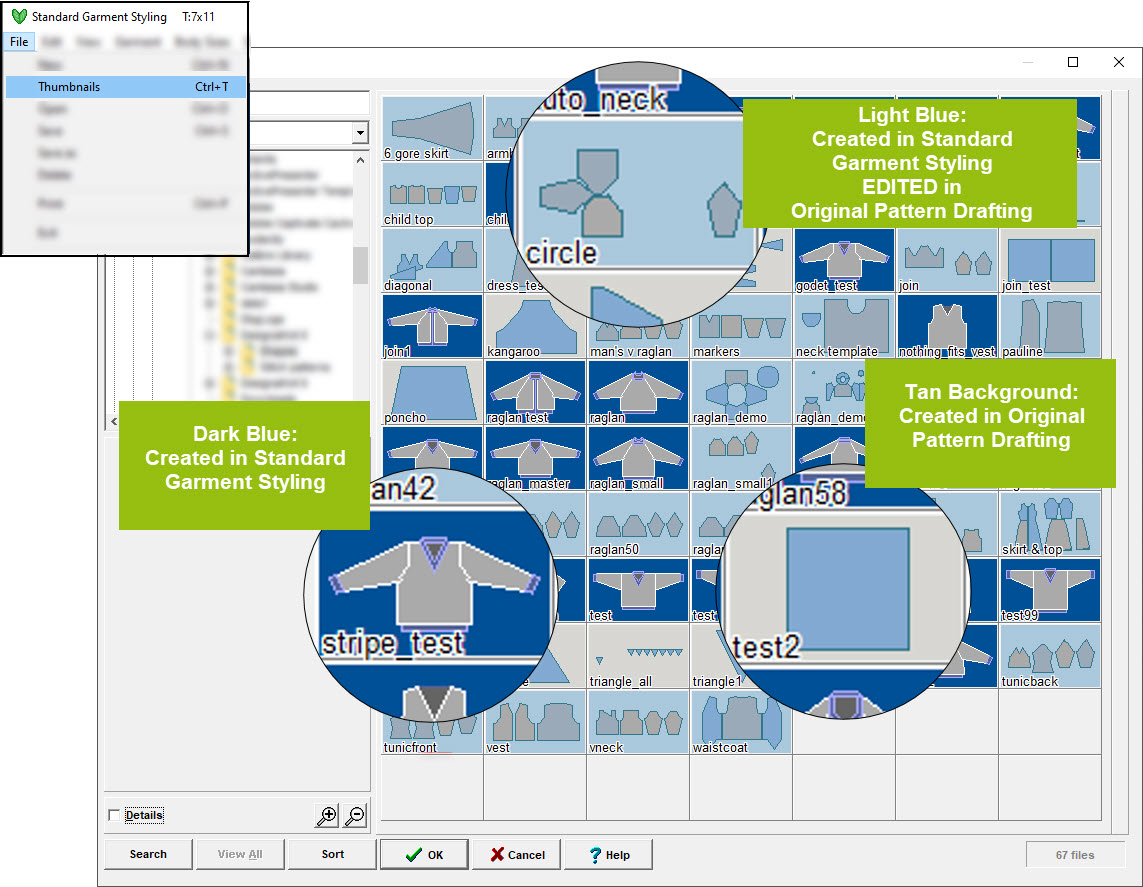
Open files with >File > Thumbnails to visually locate your garment shapes.
In addition to the names and other file details shown, the background color of the thumbnails provides a clue as to where a file was created or edited.
Dark Blue: The file was created in Standard Garment Styling and has not been edited in Original Pattern Drafting.
Tan: The file was originally created in Original Pattern Drafting.
Light Blue: The file was created in Standard Garment Styling and later edited in Original Pattern Drafting.
Remember, if you re-open a file in Standard Garment Styling that was edited in Original Pattern Drafting, any edits made will be lost.
Click to enlarge
Introduction and the Workspace
File Management
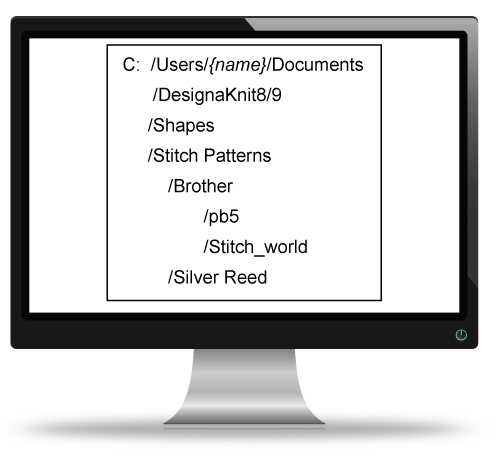
By default, when DesignaKnit is installed, working files such as shape files and stitch pattern files are stored in a specific folder on your computer.
Take a few moments to locate where your files are being saved. Knowing where your DesignaKnit files are stored will make it much easier to back up your work, move files between computers, and recover files if needed.
If you're having trouble finding the location, use Windows File Explorer and search for:
*.stp — Stitch Pattern files
*.shp — Shape files
The search results will help you identify the folders where DesignaKnit is storing your files.
Click to enlarge
Introduction and the Workspace
DAK 9 Default File Locations
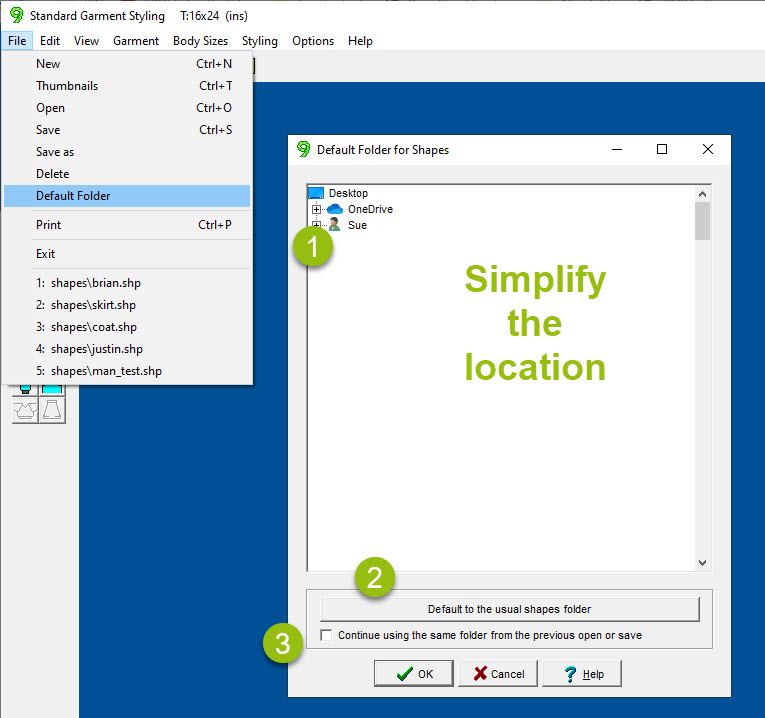
DesignaKnit 9 allows you to choose your own default folders for storing files. Instead of navigating through multiple folders each time you save or open a file, you can select a location that is convenient for you.
From the menu, select:
>File > Default Folder
Your Options
Choose a custom folder
Select a file location that is easy to find and click OK.
Reset to the DesignaKnit install folder
Restore the original default location used when DesignaKnit was installed.
Continue using the last folder opened or saved
DesignaKnit will automatically return to the most recently used folder.
Default folders for Standard Garment Styling, Original Pattern Drafting, Stitch Designer, and Graphics Studio can be set independently.
Click to enlarge
Introduction and the Workspace
Select a lesson from the menu above to get started.