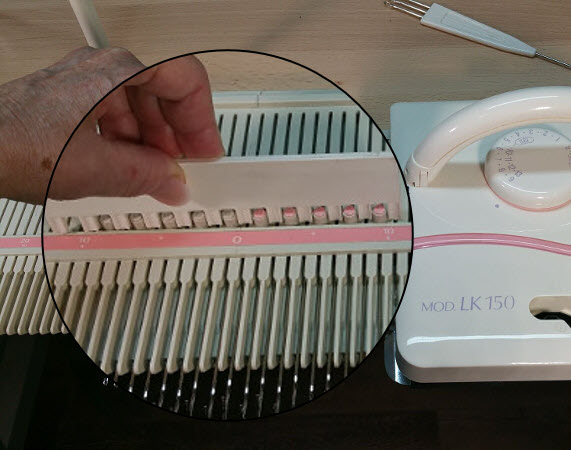
The Stitch Designer module in DesignaKnit can be used with the LK150 just like with any other knitting machine. The main difference? You won’t be downloading patterns directly to your machine - instead, you’ll work manually.
Whether you're creating tuck, lace, cables, or slip patterns, Stitch Designer helps you visualize and plan stitch patterns row by row.
It’s an invaluable tool for hand-manipulated stitch work, especially on non-patterning machines like the LK150.
You have two great options for working from your stitch pattern:
Use Interactive Knitting to follow the pattern manually, one row at a time.
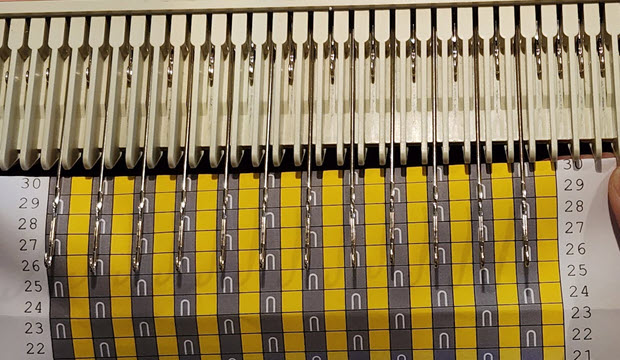
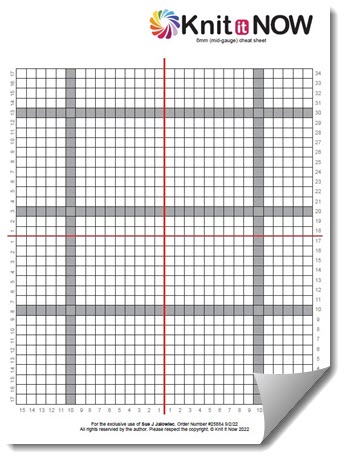
Create and print a cheat sheet from Stitch Designer to line up with your needle bed.
With either method, you can work any stitch pattern the software supports — even on the most basic machine.
Stitch Designer and the LK150
Cables
Stitch Designer and the LK150
Alerts
Don't miss your stitch pattern changes!
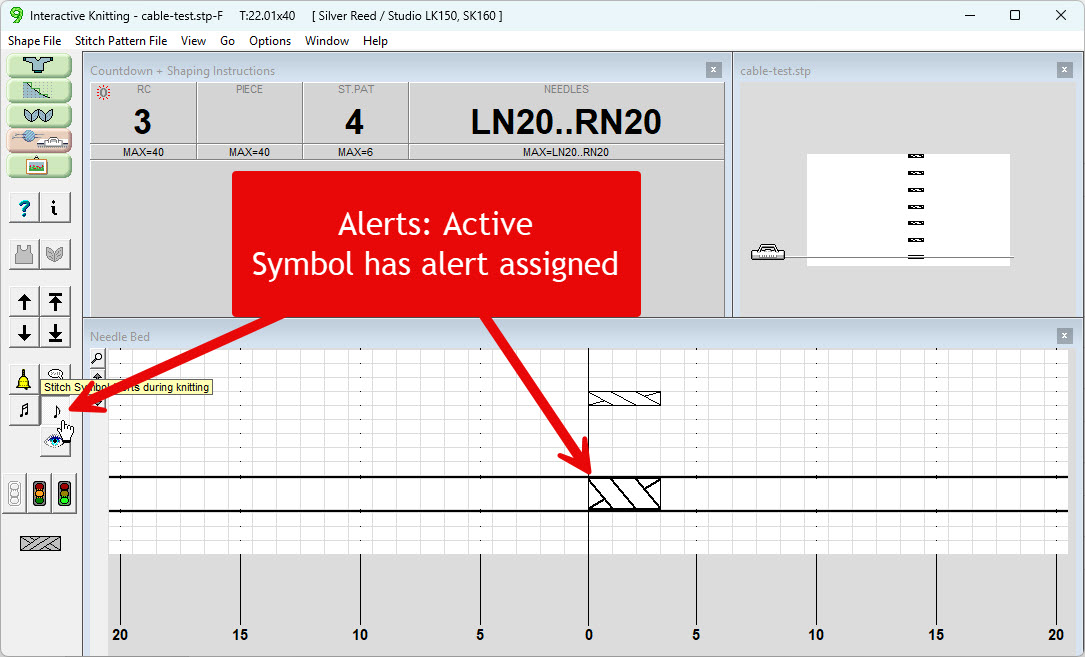
For Interactive Knitting, you can assign alert sounds to many stitch symbols. When you reach a row with that symbol, you'll hear a sound—reminding you to take action.
It’s like having a gentle nudge right when you need it most!
To hear an Stitch Symbol Alert:
Stitch symbol has an alert assigned (ie: cable symbols)
~AND~
Stitch Symbol Alerts is active
Stitch Designer and the LK150
Cheat Sheets Save Time
Create Your Own Cheat Sheets with Stitch Designer
When you’re working hand-manipulated stitch patterns on the LK150, counting needles row after row can slow you down.
Instead of marking your needle bed or using guesswork, you can create a custom cheat sheet in Stitch Designer to make needle selection faster and more accurate.
In this section, I’ll walk you through the steps to create and print a cheat sheet that matches the spacing of your LK150 needle bed. You’ll be able to line it up directly with your needles—no more counting or second-guessing.
You’ll learn how to:
Open stitch pattern in Stitch Designer
Set the width to 8 stitches (great for use with a Needle Beetle) or repeat it across the bed
Use the print settings to show either symbols or a stitch picture
Scale your print to 140% using the wrench tool (for the LK150 6.5mm pitch)
Double-check your printer is set to print at actual size (no scaling)
Line up the print with your needle bed and get to knitting!
Cheat sheets save time, reduce errors, and keep you focused on your knitting.
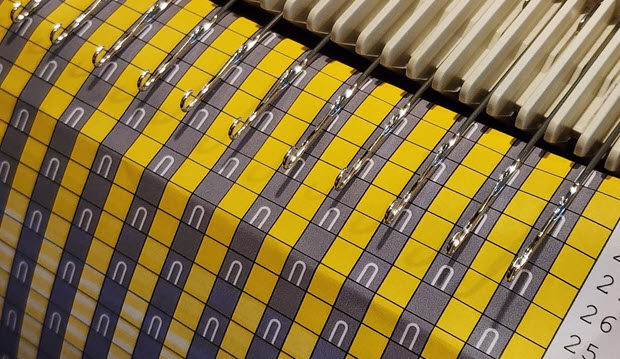
Yellow indicates needles out of work - tuck symbols for needle selection row by row