The Goal
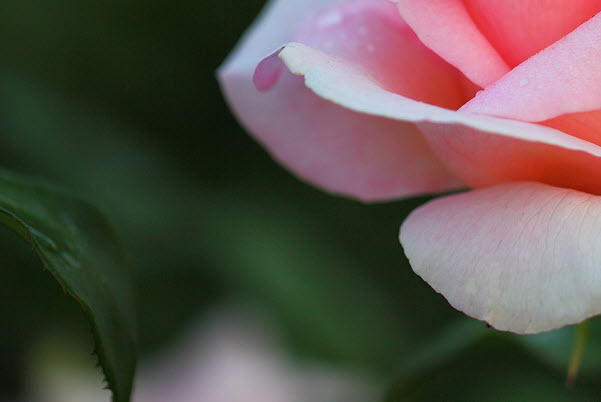
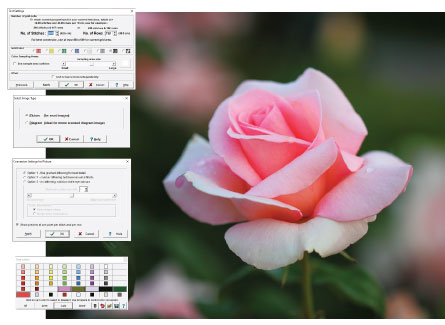
Here's a demonstration of converting a photo to a stitch pattern, integrating the stitch pattern with an Original Pattern Drafting piece and using the design in Interactive Knitting.
Section 1 is a start-to-finish demonstration with no interruptions about options or explanation of "why".
In the next sections, we'll go back step-by-step to help you not only understand the choices made, but to help you adapt the steps to your project.
Section 1 is a start-to-finish demonstration with no interruptions about options or explanation of "why".
In the next sections, we'll go back step-by-step to help you not only understand the choices made, but to help you adapt the steps to your project.
- Watch as we convert our photo
- Follow the step-by-step videos
- Then work through the Walk Through exercise of the same steps
- Take the challenge with sample images
- Convert a photo of your own